
Use the dashboard to get a quick summary of recent activity and jump into common tasks.
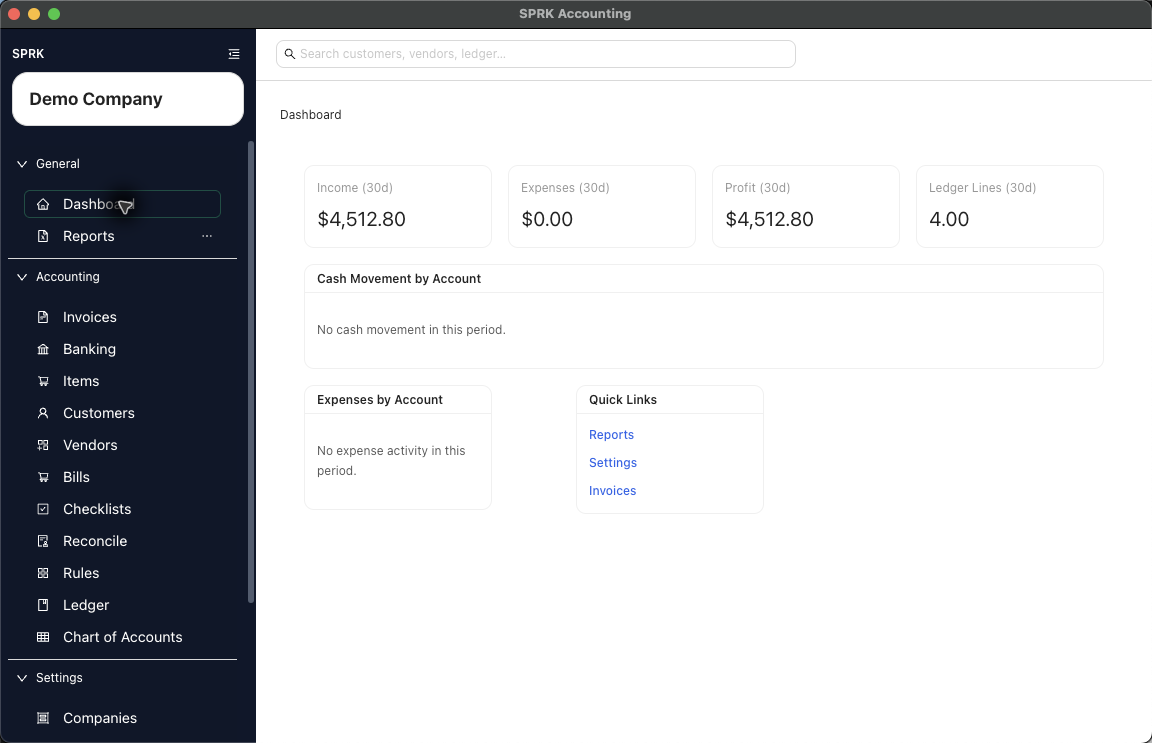
When to use this
Use the dashboard when you want a high-level view of recent activity before drilling into detailed accounting pages.
Before you start
- You have an active company selected.
- The dashboard is available from the sidebar.
Steps
- Select
Dashboardin theGeneralsection of the sidebar. - Review the top KPI cards for the current 30-day snapshot:
Income (30d)Expenses (30d)Profit (30d)Ledger Lines (30d)
- Review the chart panels:
Cash Movement (30d)Expenses by Category (30d)
- Use the
Quick Linkscard when you want to jump directly into one of the linked pages. - If the dashboard is still loading, wait for the summary cards and charts to populate before using the numbers operationally.
What happens next
Use the dashboard as a summary and a starting point for more detailed pages.
If something looks wrong
| What You See | What To Check | What To Do Next |
|---|---|---|
| A dashboard total needs more detail | Treating the summary as the full report | Open the linked working page or report for record-level detail |