
Create a customer invoice and choose whether it should stay open or be recorded as paid now.
When to use this
- You need to enter a new customer invoice.
- You need the invoice to stay in
Draft, move toOpen, or settle immediately. - You need to review customer terms, due date, item details, and income accounts before saving.
Before you start
- A customer record exists, or you are ready to add one from the invoice drawer.
- The invoice amount can be built from one or more lines.
- Your company is ready to use invoices in receivables workflows.
- You know whether
Receive toshould use an Accounts Receivable control account or a cash, bank, or credit-card settlement account. - If the invoice includes sales tax, an active liability account is available for the amount you will owe the tax agency.
- If the customer uses saved payment terms, review the filled due date before saving.
Steps
- Open
Invoices. - Select
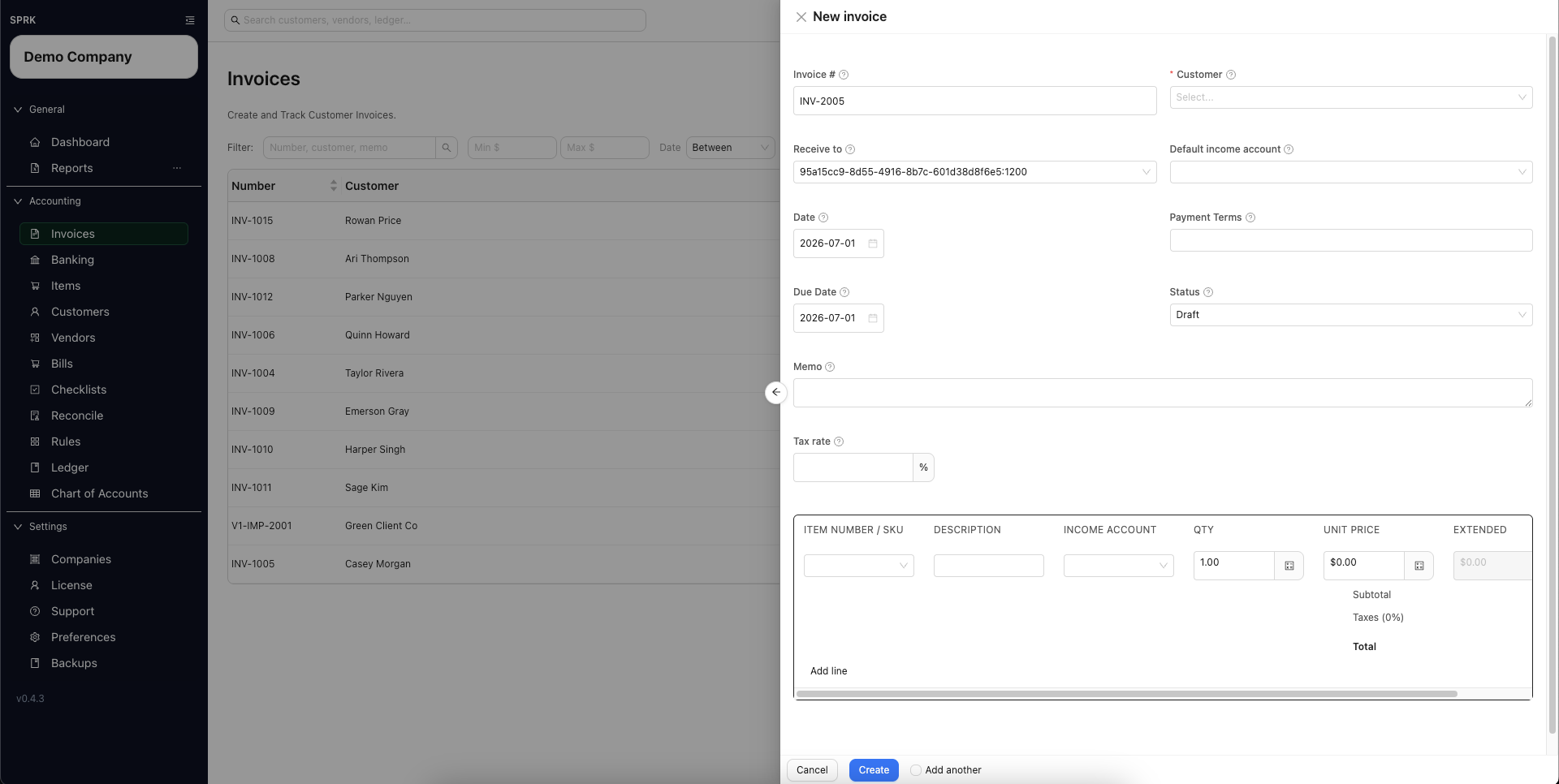
New. - Complete the invoice header:
Invoice #CustomerReceive toDefault income accountDatePayment Terms, if neededDue DateStatusMemoTax rate, if neededSales tax payable account, which appears when the tax rate is greater than zero
- If company
Invoice defaultsare configured, review the starting payment terms, due date, and workflow status before you continue.Default invoice payment termscan seed a new invoice when no customer or invoice value is already supplied.New invoice workflowcan start new invoices asDraftorOpen, depending on company setup.
- If the selected customer already has saved payment terms, review the
Payment Termsvalue SPRK fills in for you. - Review the resulting
Due Datebefore saving.- Common terms such as
Due on receipt,Due upon receipt,EOM,x/y net N, andNet Ncan calculate due dates. - Treat unusual freeform terms as values to review manually.
- If you need an exception for this invoice, replace the default due date before you save.
- Common terms such as
- Choose
Receive tocarefully:- Use an Accounts Receivable control account when the customer will pay later.
- Use a cash, bank, or credit-card settlement account only when the invoice is being recorded as paid immediately.
- These are two different choices: open receivable or paid now.
- Add one or more invoice lines.
- Use
Item Number / SKUorDescriptionto pull matching item details into the line when available.- In companies set to
Description only, supported item-entry helpers may show descriptions without item numbers.
- In companies set to
- Review quantity, unit price, line
Income account, and extended amount on each line.Default income accountfills blank line income accounts when the drawer supports that fallback.- The line-level
Income accountis the posting source for that line.
- If the invoice includes sales tax, review
Sales tax payable account.- SPRK starts with the company default when one is configured.
- You can choose another active liability account for this invoice.
- The saved invoice keeps that selection even if the company default changes later.
- If the customer or item does not exist yet, create it inline from the invoice drawer and continue without leaving the page.
- Decide how the invoice should be saved:
Draftkeeps the invoice unposted.- A taxed draft can be saved before a payable account is selected.
Openmoves the invoice into an active receivables state whenReceive tois an Accounts Receivable control account.- Choosing a settlement account in
Receive tocan route the invoice through the paid-now path instead of leaving an open receivable. - SPRK will not post a taxed Open or paid-now invoice until
Sales tax payable accountis selected.
- If you choose
Open, confirmReceive to, due date, lines, and any sales-tax account one more time before saving. - Save the invoice.
- Review the invoice list to confirm the expected status, total, balance, terms, and due date.
What Happens When You Save
The invoice appears in the invoice list with the expected number, customer, totals, balance, payment timing, and status.
Draftstores the invoice without posting.Openwith an Accounts Receivable control account moves the invoice into the receivables workflow.- A settlement account in
Receive toroutes the invoice through the paid-now path instead of leaving an open receivable. - Line-level
Income accountvalues receive the invoice subtotal when the invoice posts. - When the invoice has sales tax, SPRK credits that tax to the selected liability account instead of including it in revenue.
If something looks wrong
| What You See | What To Check | What To Do Next |
|---|---|---|
The invoice stayed in Draft |
Whether Status was set to Draft before saving |
Edit the invoice and choose the intended workflow status before saving again |
| The invoice did not stay open as a receivable | Whether Receive to used a settlement account instead of an Accounts Receivable control account |
Use the receivables route when the customer still owes the balance |
| The due date looks wrong | Customer terms, invoice date, and any manual due date | Correct the date before sending or relying on the invoice |
| Revenue looks routed to the wrong account | The line-level Income account values |
Correct line accounts before saving or use a posted correction path if already posted |
| SPRK asks for a sales-tax payable account | The invoice has tax and is being saved as Open or paid-now |
Choose the active liability account used to hold collected sales tax until it is remitted |
| Item numbers are missing from entry helpers | The company Item identification setting |
Use description-based selection when the company is set to Description only |