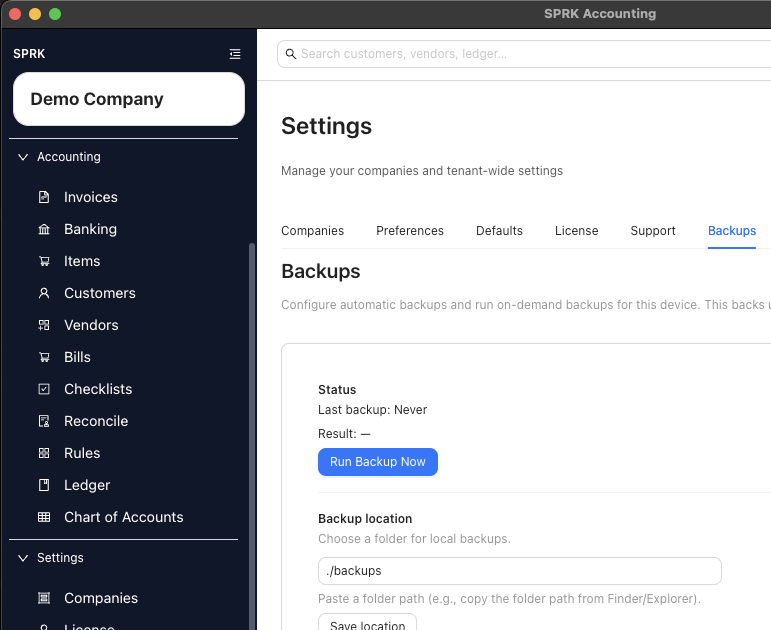
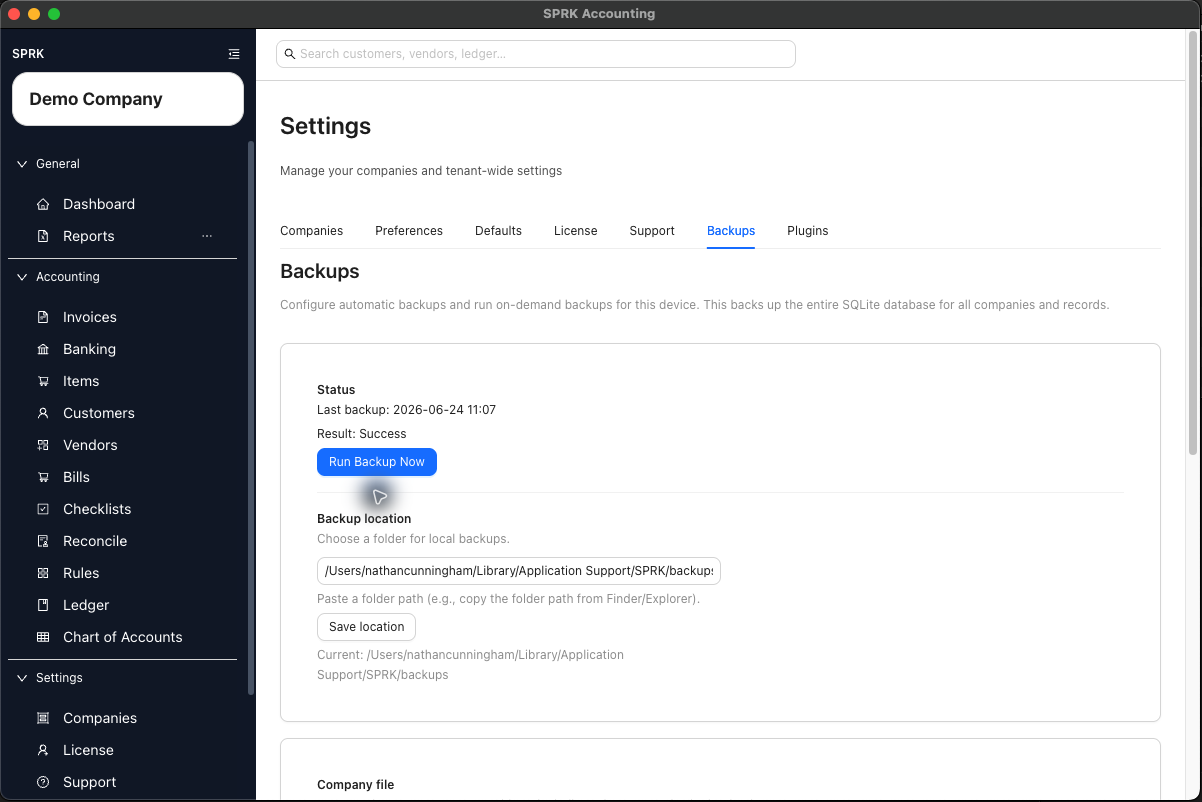
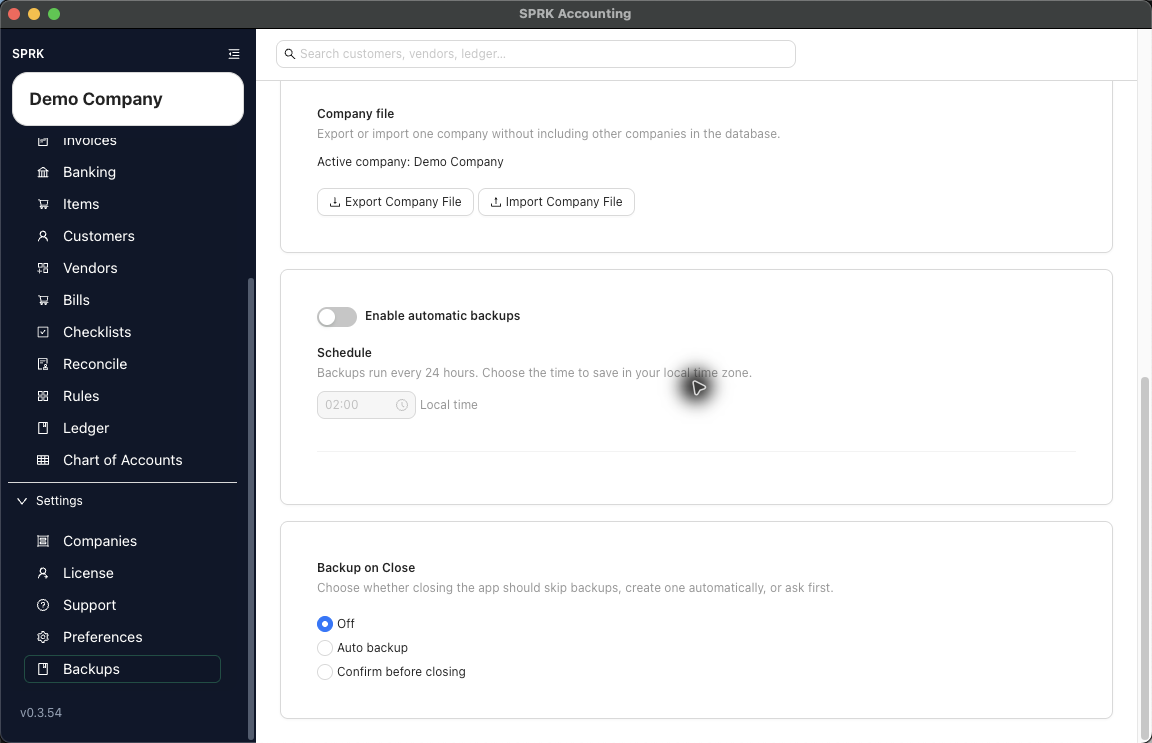
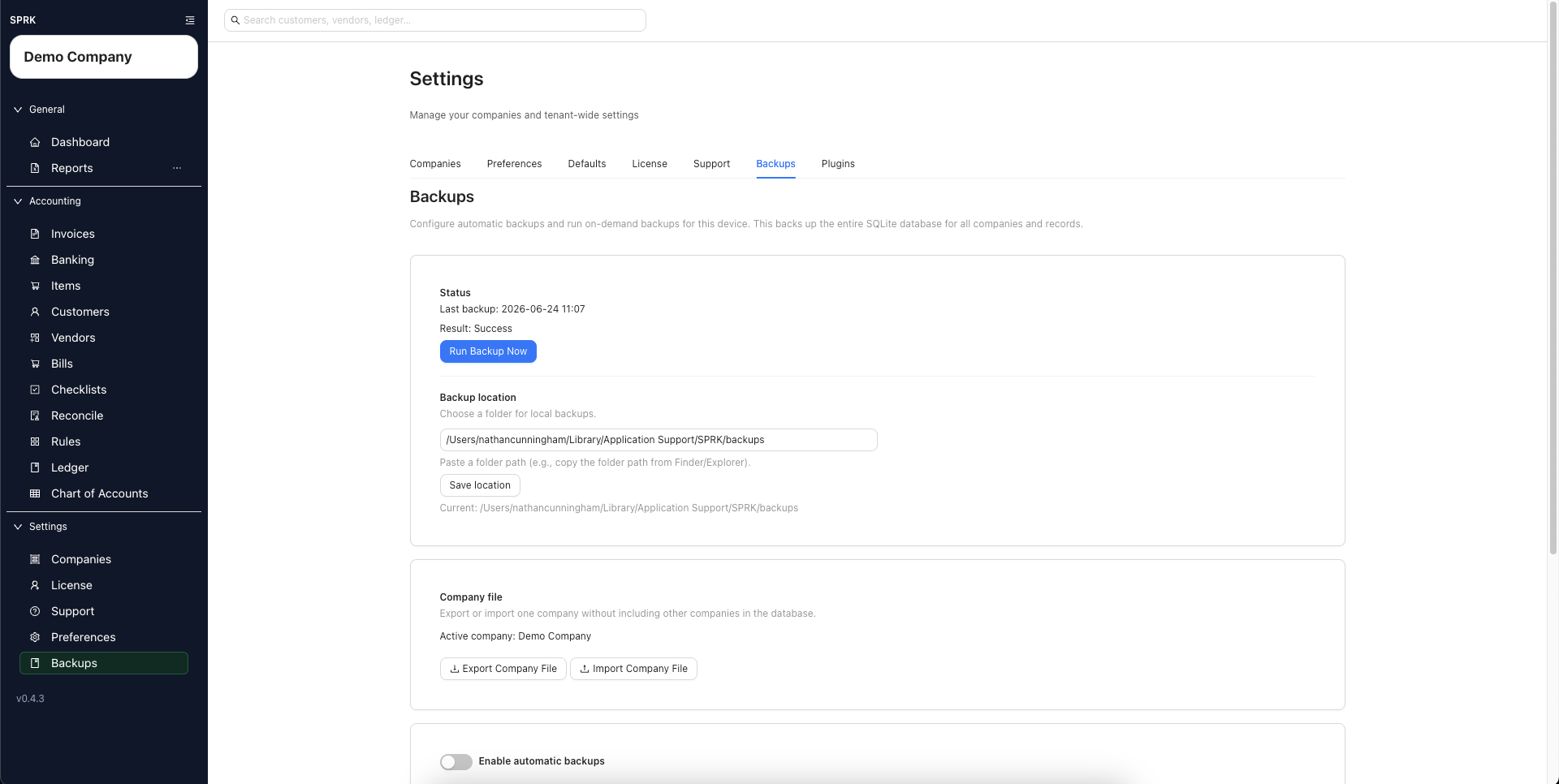
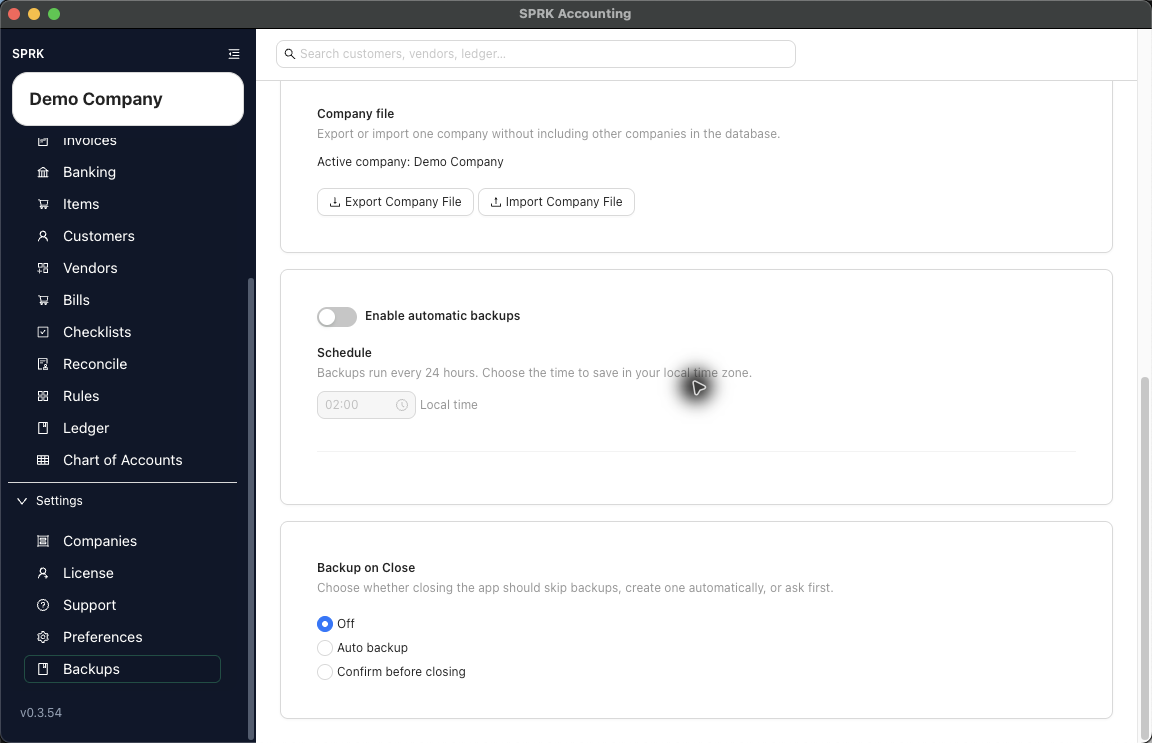
Open the Backups tab to review the current automatic backup controls, backup location, recent status, on-demand backup action, and visible Company File transfer controls.
When to use this
Use this guide when you want to check the backup schedule, confirm the save location, or run a backup now.
Before you start
- You are signed in to SPRK.
- Confirm the active company shown in the sidebar before using company-file controls.
Steps
- Confirm the active company shown in the sidebar.
- Open
Backupsfrom theSettingssection. - Confirm the
Backupstab is selected. - Review the automatic backup switch.
- Review the daily schedule time shown in local time.
- Review the
Backup locationfield. - If you need to change the folder path, enter the new path and save the location.
- A relative path is resolved by SPRK against its configured backup base directory.
- The saved field may still reflect the value you entered; review the run result to confirm the final resolved path.
- Review the
Statusarea for the last backup time and result. - Use
Run Backup Nowwhen you want to create an on-demand backup from the current device.- A successful manual backup reports the resolved backup path so you can see where the file landed.
- If path resolution succeeds but the backup fails later, the visible error can still refer to the resolved target path.
- Review the
Company filecard separately from routine backups:Export Company Fileexports the active company only.Import Company Filestarts the company-file import path.- The card shows the active company name so you can confirm the company context before continuing.
What happens next
You can review and manage the current backup controls that SPRK exposes publicly: enable or disable automatic backups, set the daily time, save a folder path, review the last result, start a manual backup run, and use company-scoped Company File transfer controls.
- Relative backup locations are not necessarily the final filesystem path shown after a run; SPRK resolves them before writing the backup file.
- Running a backup creates a data copy for safekeeping.
- Exporting a Company File creates a package for the active company.
- Importing a Company File is a data-management workflow. Review preview and replace language before confirming any import.
Practice and examples
Use the example file and screenshots to compare routine backup controls with Company File controls.
- Practice file: company-file-export-practice.csv