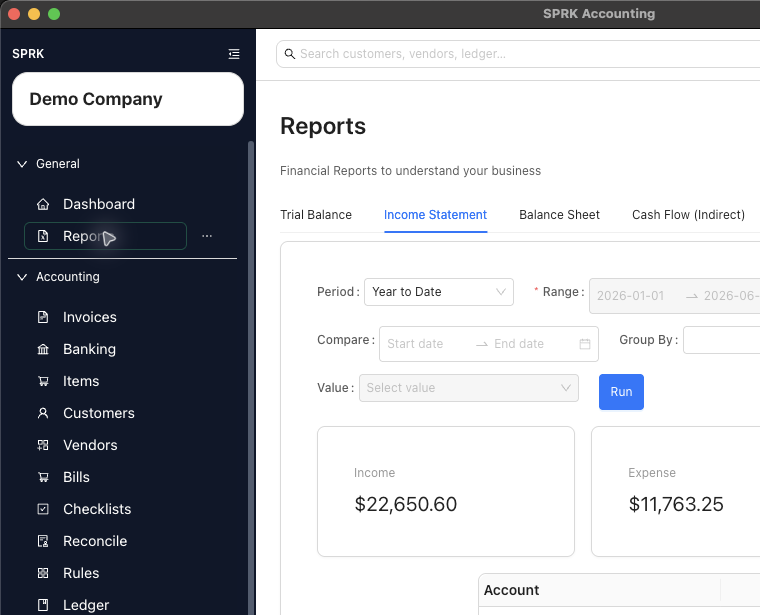
Use this report catalog to choose the SPRK report that fits the review question before running, exporting, printing, or drilling into results.
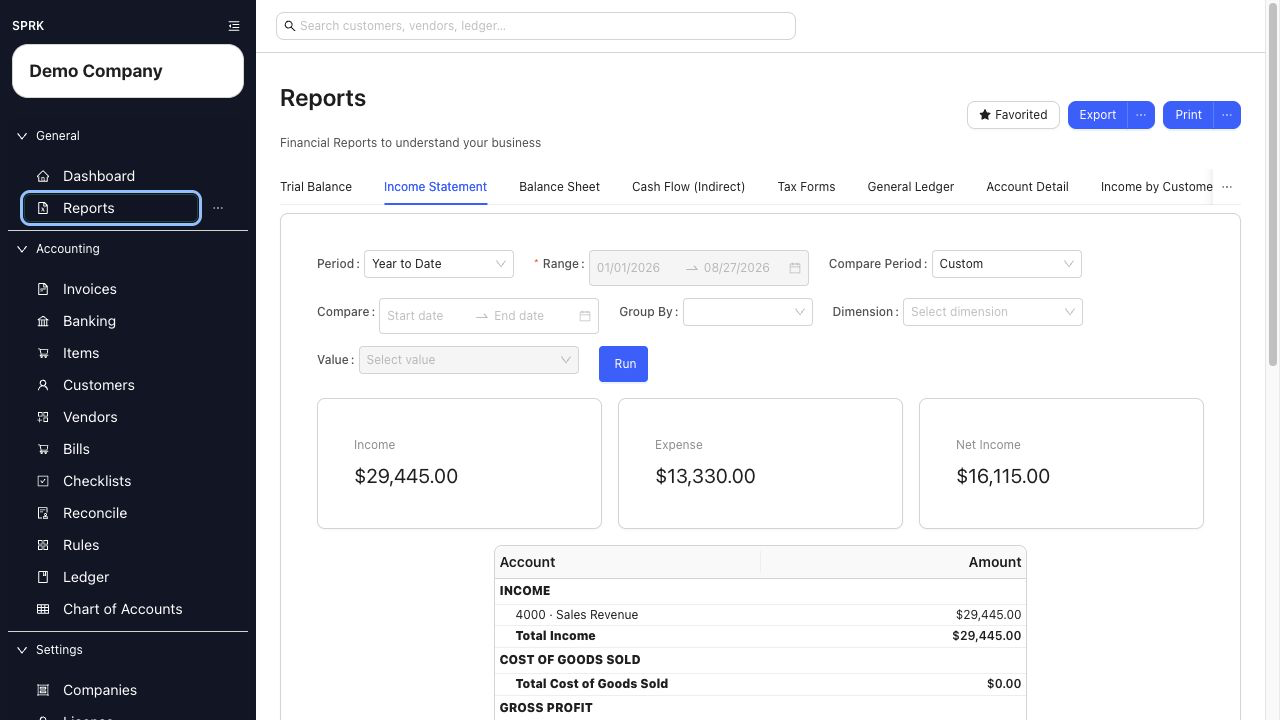
Quick reference
| Report Or Area | Use It For | Where It Matters |
|---|---|---|
Trial Balance |
Account balances by debit and credit | Period review, cleanup, and accountant checks |
Income Statement |
Income, expenses, and net income | Operating results and compare-period review |
Balance Sheet |
Assets, liabilities, and equity | Financial position review |
Cash Flow (Indirect) |
Cash flow review | Cash movement interpretation |
Schedule C |
Income and expense activity grouped for Schedule C review | Tax-preparation review; not filing |
Tax Forms |
Tax-form review where available | Review only; not tax filing or agency submission |
General Ledger |
Posted transaction detail by account | Drilldown, account review, and export |
Account Detail |
One account’s activity | Account-level investigation |
Expense by Vendor |
Vendor spending and 1099-oriented review | Vendor review and expense analysis |
Income by Customer |
Posted income grouped by customer and account | Customer contribution and invoice-detail review |
Receivables Aging |
Unpaid customer balances | AR review and collection follow-up |
Payables Aging |
Unpaid vendor balances | AP review and payment planning |
Reconciliation |
Posted reconciliation reports | Bank reconciliation history |
| Plugin-provided reports | Reports added by compatible installed plugins | Available only when the plugin is enabled and its report is available |
Details
- Open
Reportsfrom the left sidebar. - Confirm the page header shows
Reports. - Select the tab that matches your review question. Use the tab overflow menu if a report is not visible in the first row.
- Set the date controls required for that tab:
- Range-based reports use a period preset and date range.
- As-of reports use an as-of style date.
- Date fields can be selected from the calendar or typed directly.
- Typed dates should follow your saved
Preferencesdate order.
- Review report-specific filters:
Income Statementsupports compare-period controls and optional grouping.Tax Formsrequires a tax-form selection before you run it.Expense by Vendorincludes vendor and date filters, and can expose a1099filter withAll,Yes, andNo.General Ledgeradds filters forAccount Type,Account SubType,Accounts,Vendor,Text,Group By, and optionalInclude opening balance.- Aging reports and
Reconciliationrequire the filters shown on their tabs.
- Select
Run. - Review the table and any summary cards that appear.
- If needed, use
Exportto save the current report rows orPrintto open the print workflow for the active report.
Reports show posted data for the active company. Export and Print use the current report view.
If something looks wrong
| What You See | What To Check | What To Do Next |
|---|---|---|
| A report looks blank | Active company, date range, filters, and posted activity | Adjust the context and run the report again |
| A report tab uses different date controls | Whether the report is range-based or as-of | Use the controls shown on that report tab |
| Typed dates normalize unexpectedly | Saved date-format preference | Enter dates in the order shown in Preferences |
| You need files from several reports | Whether only the active report is selected | Export each needed report from its own tab |
| A plugin report is missing | Plugin enablement, company access, and report availability | Refresh plugin status and check Reports again |
Tax Forms looks like a filing workflow |
Whether you are reviewing report output only | Use it as review output, not tax filing or agency submission |
Practice and examples
- Practice file: report-export-practice.csv