
Prepare customer, item, and account defaults before you start entering invoices so receivables activity is easier to review and maintain later.
When to use this
Use this page when you want invoice entry to start from cleaner defaults instead of rebuilding customer, item, and account choices on each invoice.
Why This Matters
- Customer setup can carry a
Default Income Accountand standard payment terms. - Item setup can carry reusable descriptions, pricing, unit-of-measure values, and income account choices.
- Company
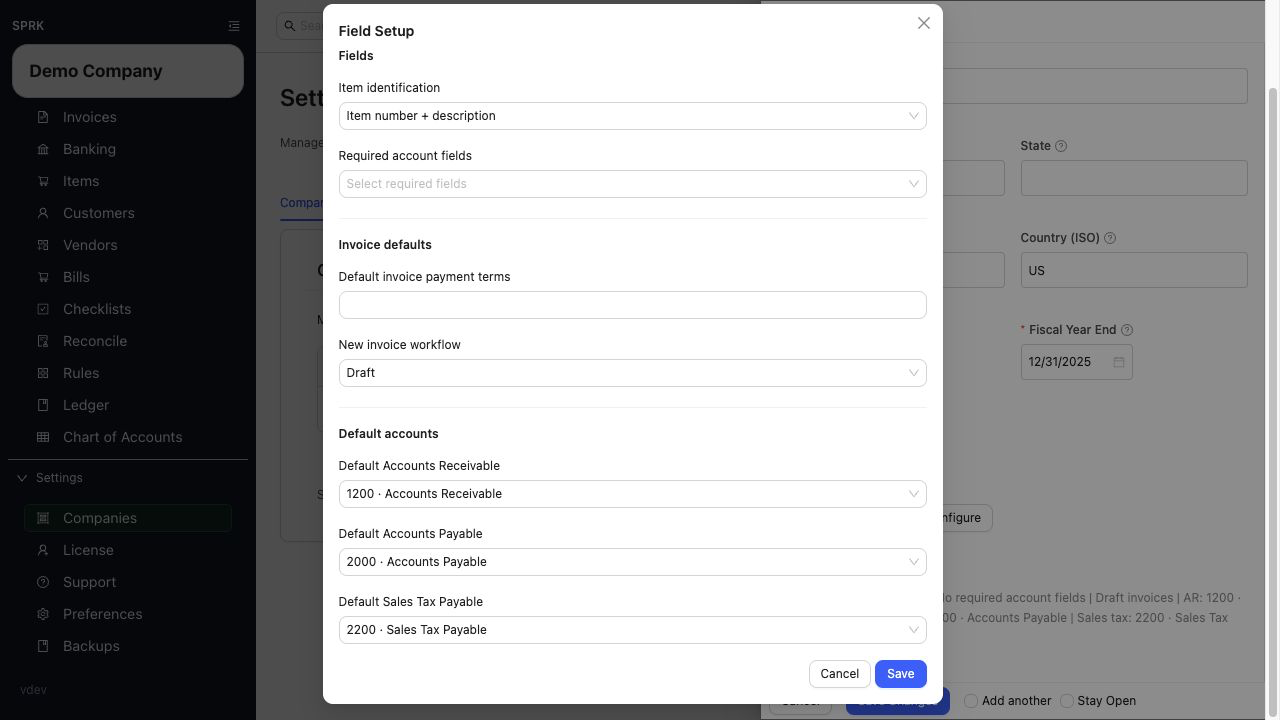
Invoice defaultscan seedDefault invoice payment termsand theNew invoice workflowfor new invoices. - Company
Default Sales Tax Payablecan seed the liability account on taxed invoices. - Company
Item identificationsetup can decide whether supported item selectors showItem number + descriptionorDescription only. - Company
Invoice Templatesettings control the standard printed layout, payment instructions, andPayment Informationdisplay mode; there is no visible document-template selector in the current modal. - Invoice entry can reuse saved customers and items, or create them inline without leaving the invoice drawer.
- Cleaner setup reduces rework when you review open invoices, balances, and receivables aging later.
Before you start
- You can open
Customers,Items, andInvoices. - Your chart of accounts already includes the income accounts and receivables account you expect to use. Nonposting summary accounts and restricted control accounts may be visible in the chart but unavailable in posting-oriented invoice and default-account selectors.
- You know whether invoice lines should usually follow customer defaults, item defaults, or a one-off exception for the current job.
Setup Workflow
- Review your income and receivables accounts first.
- Open company settings and review sales-related defaults if they are part of your rollout:
Invoice defaultsstoresDefault invoice payment termsandNew invoice workflow.Default invoice payment termscan seed new invoices when no more specific value has already been supplied.New invoice workflowcan start new invoices asDraftorOpen.- Due dates can be calculated for common terms such as
Due on receipt,Due upon receipt,EOM,x/y net N, andNet N. - Under
Default accounts, chooseDefault Sales Tax Payablewhen the company collects sales tax. This must be an active liability account.
- Review
Item identificationif item numbers should or should not appear during entry:Item number + descriptionkeeps item numbers visible beside descriptions where supported.Description onlyhides item numbers in supported item and invoice helpers without deleting the item numbers from item records.
- Open
Invoices>More>Invoice Templatewhen you need company-level print defaults. ReviewPayment Instructions, layout controls, andPayment Information; these affect printed output and do not post payments. - Open
Customersand decide whether the customer needs invoice-related defaults:- Set
Default Income Accountwhen this customer usually points to the same revenue category. - Set payment terms when most invoices for the customer follow the same due-date pattern.
- Set
- Open
Itemsand create or update the products or services you invoice repeatedly:- Save
Item Number / SKUandDescriptionvalues that users can recognize quickly during invoice entry. - Save
Unit priceandUnit of measurewhen those values repeat often. - Review
Income accountwhen you want the item record to carry its own sales default.
- Save
- If you import customers or items, review the imported account mappings before you start invoicing.
- Open
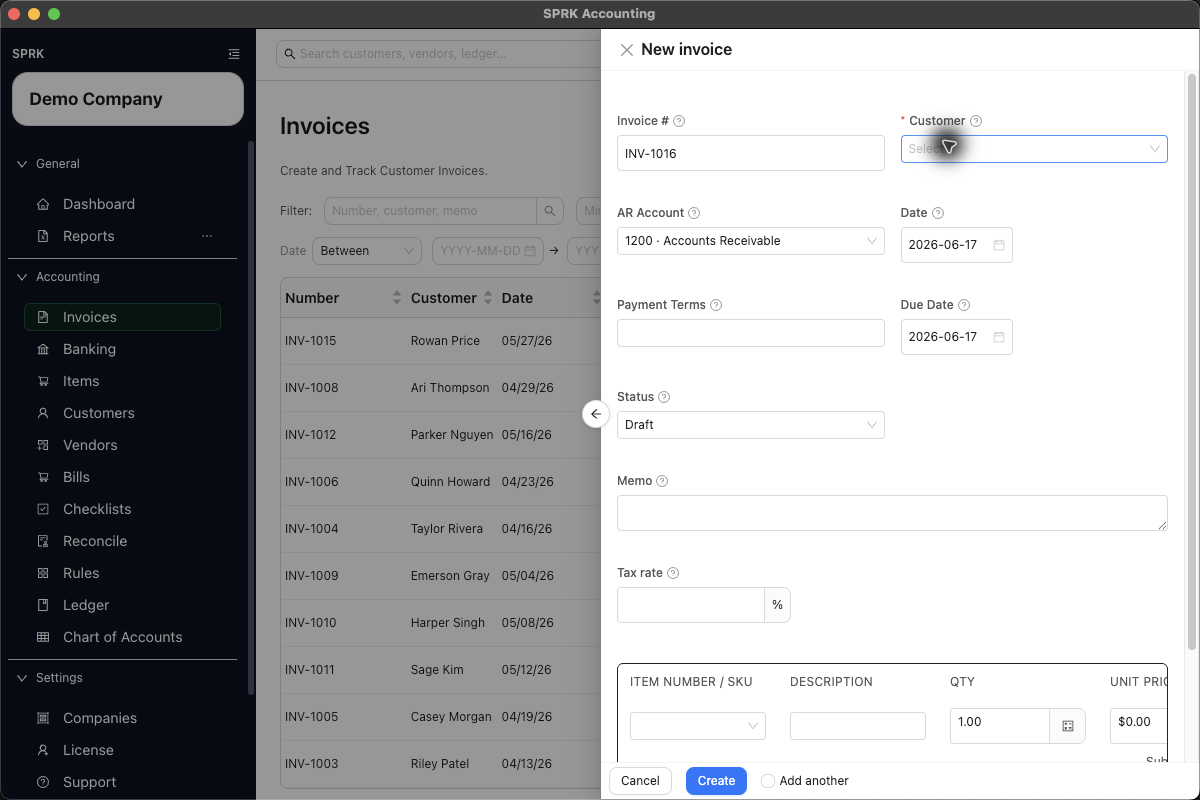
Invoicesand create a new invoice only after the main defaults are in place. - In the invoice drawer, review the header fields before adding lines:
CustomerReceive toDefault income accountDatePayment TermsDue DateSales tax payable account, when a tax rate is entered
- Use the line selectors to pull saved item details into invoice lines:
Item Number / SKUcan fill matching description and price details.Descriptioncan fill matching item number/SKU and price details.- In
Description onlymode, the supported selectors may show descriptions without item numbers.
- Review line
Income accountvalues before saving. Header defaults and item defaults help fill lines, but the line account remains the posting source. - If the needed customer or item does not exist yet, create it inline from the invoice drawer and continue the invoice without leaving the workflow.
- Before saving an invoice as
Open, confirmReceive to, due date, and line details still match the intended transaction.
What happens next
Invoice entry starts from cleaner defaults, repeated customers and items are easier to reuse, and open receivables are easier to review by customer, timing, and account structure.
Downstream Effects
- Customer terms can fill invoice terms and help calculate a due date.
- Company terms, workflow defaults, and the sales-tax payable default can seed new invoices, but each invoice still needs review before posting.
- The invoice still needs a reviewed
Receive tovalue before it moves to an open receivable or paid-now settlement path. - Saved item details can reduce manual entry and help keep invoice lines more consistent.
- Customer and item defaults improve setup quality, but they do not replace final invoice review.
- Customer default account selectors use eligible posting accounts and readable account labels where those columns are shown. If an active account is missing, check whether it is nonposting or control-restricted before assuming it was deleted.
Description onlyitem identification changes labels in supported workflows. It does not delete item numbers, change posting, or change import matching by itself.- Receivables aging and invoice list review become easier when customer names, due dates, and line details are consistent.