
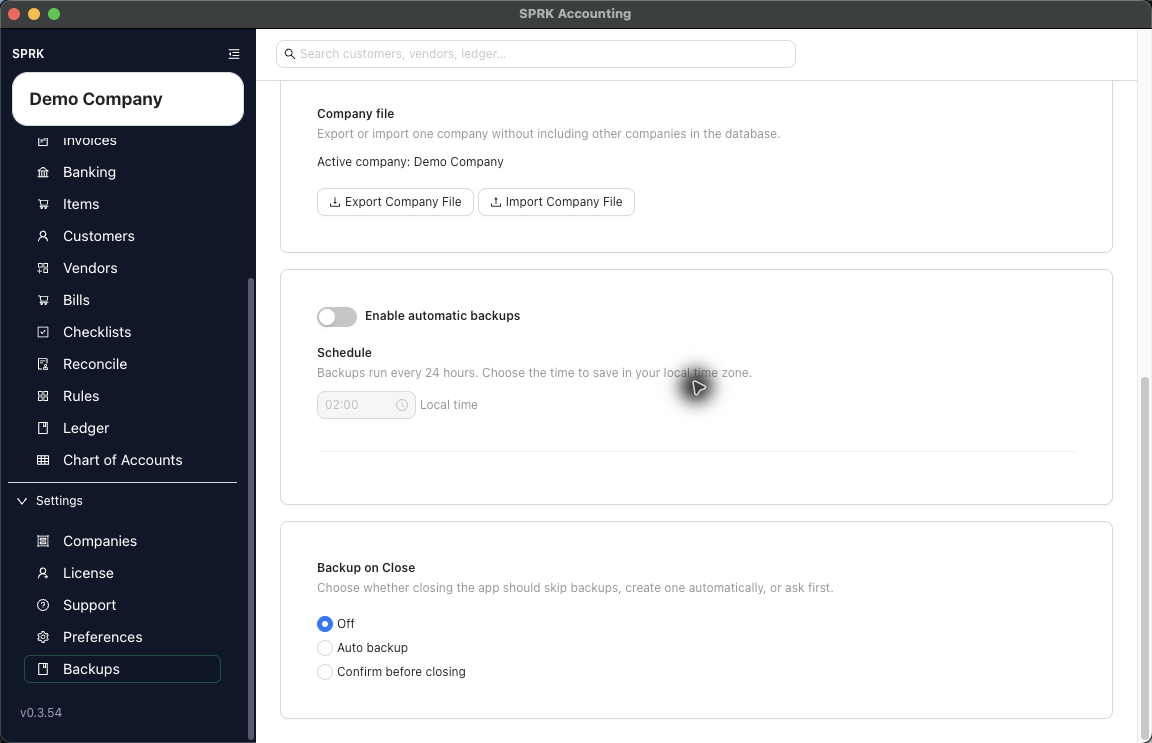
Review how SPRK schedules automatic backups so you know when the app plans to save backup files for this device.
Quick reference
| Setting or Result | Meaning | Where It Matters |
|---|---|---|
Enable automatic backups |
Controls whether the daily backup schedule is active. | Use it when you want SPRK to create routine backup files from this device. |
Schedule |
Shows the local time SPRK uses for the daily backup cycle. | Use it to decide when backups should run around normal work. |
Backup location |
Shows the saved location setting for backup files. | Review it before relying on scheduled or manual backup output. |
| Relative backup location | A saved folder value that SPRK resolves before writing the backup file. | Use a recent backup result when you need the final resolved location. |
| Backup status | Shows recent backup activity and visible result text. | Review it after scheduled or on-demand backup activity. |
Details
Automatic backup settings control when and where SPRK saves backup files.
Use Preferences -> Backups to review whether automatic backups are enabled, what time is selected, and which backup location is saved. Treat the displayed time as local device time.
When the saved backup location is relative, review a recent manual backup result if you need the final folder path.
If something looks wrong
| What You See | What To Check | What To Do Next |
|---|---|---|
| The schedule time is different than expected | Whether the displayed time matches local device time | Update the schedule field if backups should run at a different time. |
| The saved location is not a complete folder path | Whether the value is relative | Review a recent manual backup result to confirm the resolved location. |
| The backup status does not match the selected company | Whether you are reviewing the intended company context | Confirm the active company before reviewing company-file controls. |