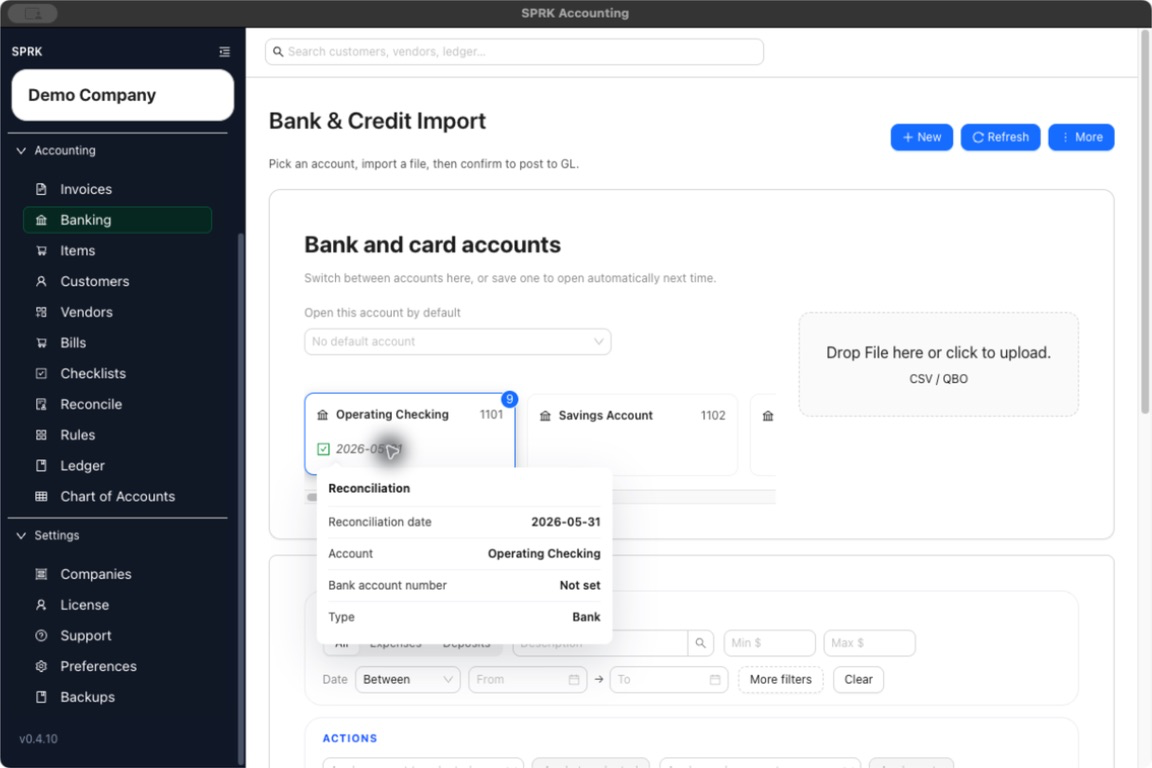
Choose the right bank or credit card account before you import, review, confirm, or reconcile activity so that work stays tied to the correct register.
When to use this
Use this page when you want to understand how SPRK separates banking work by account and how to save one account to open automatically next time.
When This Matters
- You manage more than one bank account or credit card in the same company.
- You import files for different cash or card accounts.
- You want pending counts and reconciliation work to stay separated by account.
- You want SPRK to open the same account automatically each time you return.
What The Account Chooser Controls
The account chooser appears in both Banking and Reconcile.
- Each card represents one bank or credit card account.
- Selecting a card changes the account you are working in right now.
- The chooser can include both bank accounts and credit cards in the same strip.
- If the company uses name-only account presentation, account cards and dropdowns can show account names without code-first labels.
- In
Banking, pending counts can appear on the account cards so you can see which account still needs review. - In
Banking, a card can show the latest posted reconciliation statement date. Open that date to review the reconciliation date, account, bank account number, and account type. - The account marked
Default on openis the account SPRK tries to open automatically the next time you return to that workflow.
Save A Default Account
- Open
BankingorReconcile. - Find
Open this account by default. - Choose the bank or credit card account you want SPRK to open automatically next time.
- Confirm that the chooser updates and the selected account shows the default badge.
What To Expect
- Saving a default account updates your open-by-default preference for the active company.
- Choosing a different account card still lets you work somewhere else for the current session.
- Clearing the default removes the automatic open behavior for later visits.
If You Do Not See The Right Account Yet
- Add the missing bank or credit card account before importing or reconciling activity into it.
- If your chooser offers an add-account path, use that option to create the account without leaving the workflow.
- If the needed account still does not appear, confirm that it was created as the correct bank or credit card type for the active company.
- If account codes are missing from the chooser, confirm whether the company is intentionally using
Required account fields = Name.
Choose The Account Before Importing
Use the account chooser before importing files into Banking.
- Imports belong to the account that is active when you upload the file.
- If no account is selected, SPRK keeps the importer locked until you choose one.
- Reviewing the account before upload helps prevent pending rows from landing in the wrong register.
Choose The Account Before Review And Confirmation
Use the account chooser before reviewing pending bank activity.
- Pending and categorized activity belongs to the selected bank or credit card account.
- Confirming a transaction posts the bank-side line against the account that is active for that row.
- Switching to another account changes the register you are reviewing, not the already confirmed activity in another account.
Choose The Account Before Reconciliation
Use the account chooser before starting Reconcile.
- Reconciliation is always tied to one bank or credit card account at a time.
- Statement balances, cleared transactions, and reconciliation history depend on the account you chose.
- Starting on the wrong account can make the statement totals and available transactions look incorrect for the statement you are holding.
- A date on a Banking account card is historical context from posted reconciliation history. It is not a row-level reconciled status and does not prove that current activity is cleared.