
Open existing invoices, review invoice actions, and handle posted-save prompts before changing invoice details.
When to use this
- You need to review an existing invoice from the invoice list.
- You need to update invoice details.
- SPRK shows a posted-save strategy before changing an invoice that already posted.
Before you start
- Confirm the active company.
- Find the invoice number, customer, date, status, total, and balance.
- Review payment history before changing an invoice that has a payment balance or prior activity.
- If the invoice already posted, treat changes to
Receive to, line income accounts, dates, totals, or posted status as accounting-sensitive.
Steps
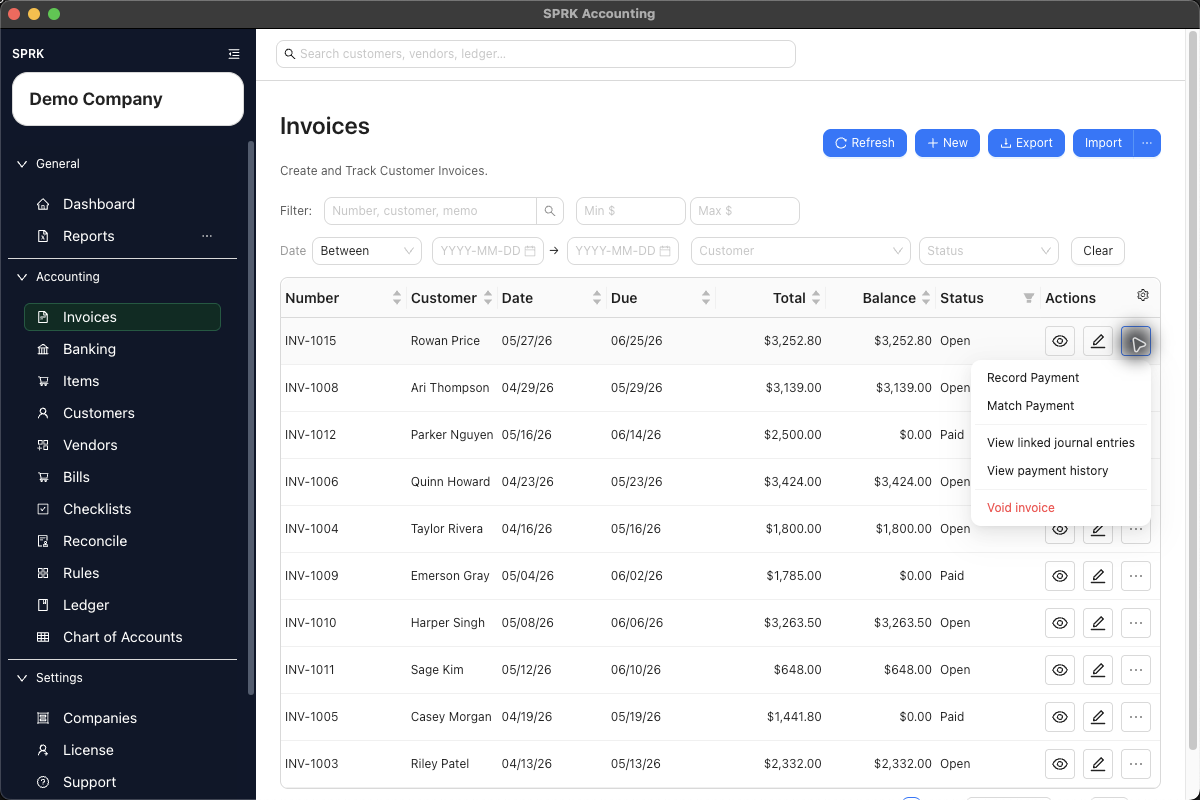
- Open
Invoices. - Find the invoice in the list.
- Use the row action for
Viewwhen you only need to review the invoice. - Use the row action for
Editwhen you need to update invoice details. - Use the row action menu when you need source-document actions such as:
PrintRecord PaymentMatch PaymentView linked journal entriesView payment historyVoid invoice
- Confirm the invoice number, customer, date, due date, status, total, and balance before making changes.
- If you edit and save an invoice that has already posted, review the available strategy before continuing:
Post adjustment journal entryReverse and repostEdit existing journal entry
- Review the dates SPRK asks for before confirming a posted-save strategy:
- Adjustment dates can use
Today,Original posting date, orCustom date. - Reversal dates can use
Original posting date,Today, orCustom date. - Repost dates can use
Document date,Today, orCustom date.
- Adjustment dates can use
- Save only after the invoice status, balance, due date, routing account, and line accounts match the intended correction.
What Happens When You Save
Reopened invoices can be reviewed in view mode, updated in edit mode, reviewed through payment history, or corrected through supported source-document actions. Posted invoice saves follow the strategy you choose when SPRK prompts, and Edit existing journal entry can be unavailable when company policy or prior adjustment history does not allow it.
If something looks wrong
| What You See | What To Check | What To Do Next |
|---|---|---|
| The invoice balance does not match the expected customer balance | Payment history and linked journal entries | Review payment activity before changing invoice totals |
SPRK shows Save Posted Invoice |
Whether the invoice has already posted | Choose the posted-save strategy that matches the correction you intend |
Edit existing journal entry is unavailable |
Company policy or prior adjustment history | Use another available posted-save strategy |
The action menu does not show Void invoice |
Invoice status, balance, and active payments | Use a supported correction path instead of deleting the invoice |
| The invoice printout needs review | Whether you only need customer-facing output | Use the print workflow instead of editing accounting fields |