
Follow a first-day path through sign-in, company confirmation, navigation, dashboard review, and your next setup or transaction task.
When to use this
Use this article when you want a practical first-day sequence that gets you oriented without accidentally working in the wrong company or skipping important setup.
Before you start
- You can open SPRK.
- You are ready either to explore a demo company or to work in a real company.
Steps
- Sign in to SPRK or complete the startup path that applies to your workspace.
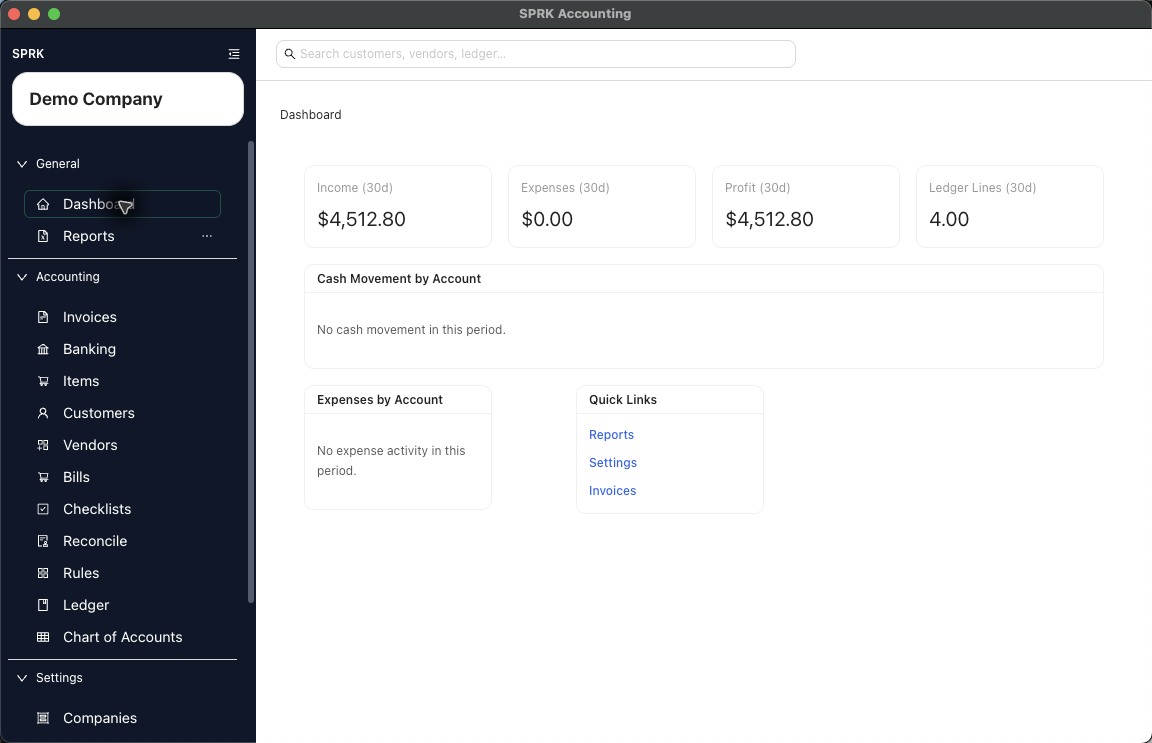
- Confirm the active company in the sidebar before opening a working page.
- Open
Dashboardand review the summary cards and charts so you understand what company context is currently loaded. - Scan the sidebar to identify where your most common work will happen:
Invoices,Customers, andItemsfor receivables workBankingandRulesfor imported bank activityBills,Vendors, andChecksfor payables workLedgerandChart of Accountsfor ledger review and setupReportsfor financial review
- Choose the next task based on your goal:
- If you need a company first, go to Create your first company.
- If you are bringing in source data, go to Use the Import Wizard.
- If you are just learning the product layout, continue with Move between major app areas.
What happens next
You finish your first day with the right company selected, a working mental model of the main navigation, and a clear next task.