
Open the Checklist area, manage reusable checklist templates, and understand the difference between template setup and period-specific runs.
When to use this
Use this guide when you need to review the Checklist page layout, maintain reusable checklist templates, or understand how checklist runs are created from those templates.
Before you start
- An active company is selected.
- You know the checklist name and the items you want the template to contain.
- If you plan to reuse a checklist across multiple periods, you know whether it should stay active or be treated as a default template.
Steps
- Open
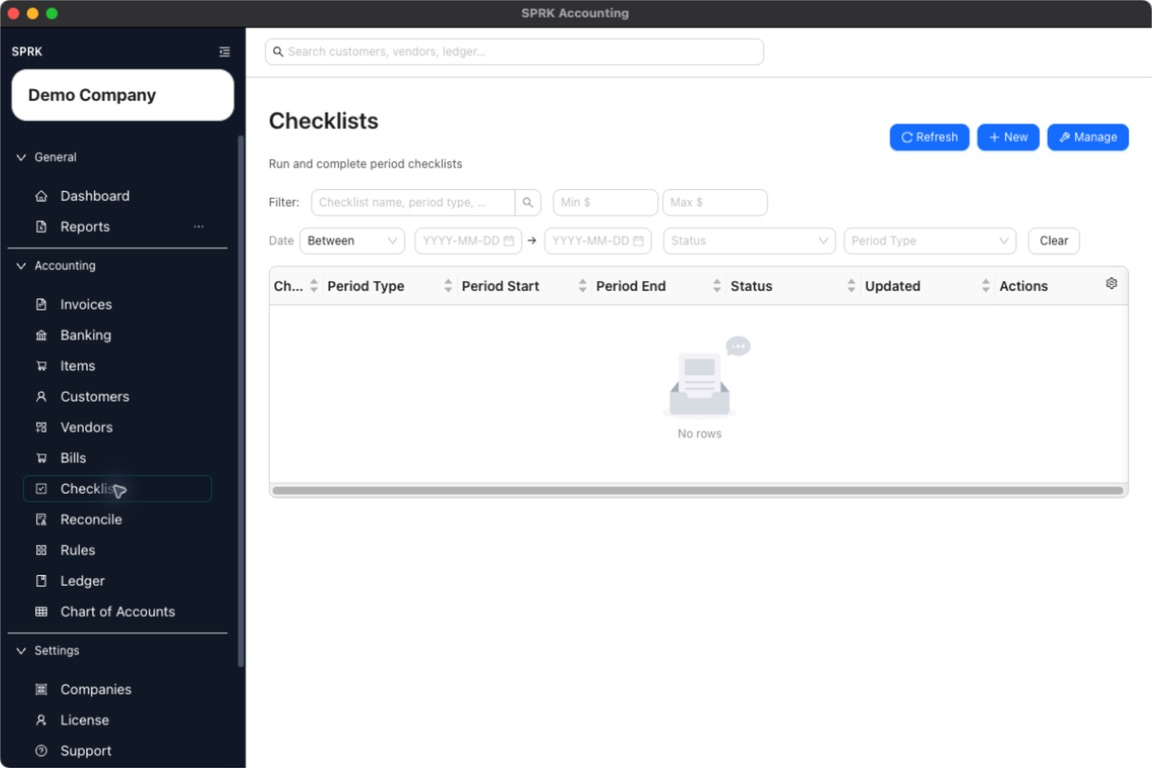
Checklist. - Review the main page:
- The top action row includes
Refresh,New, andManage. - The main table lists checklist runs, not checklist templates.
- The top action row includes
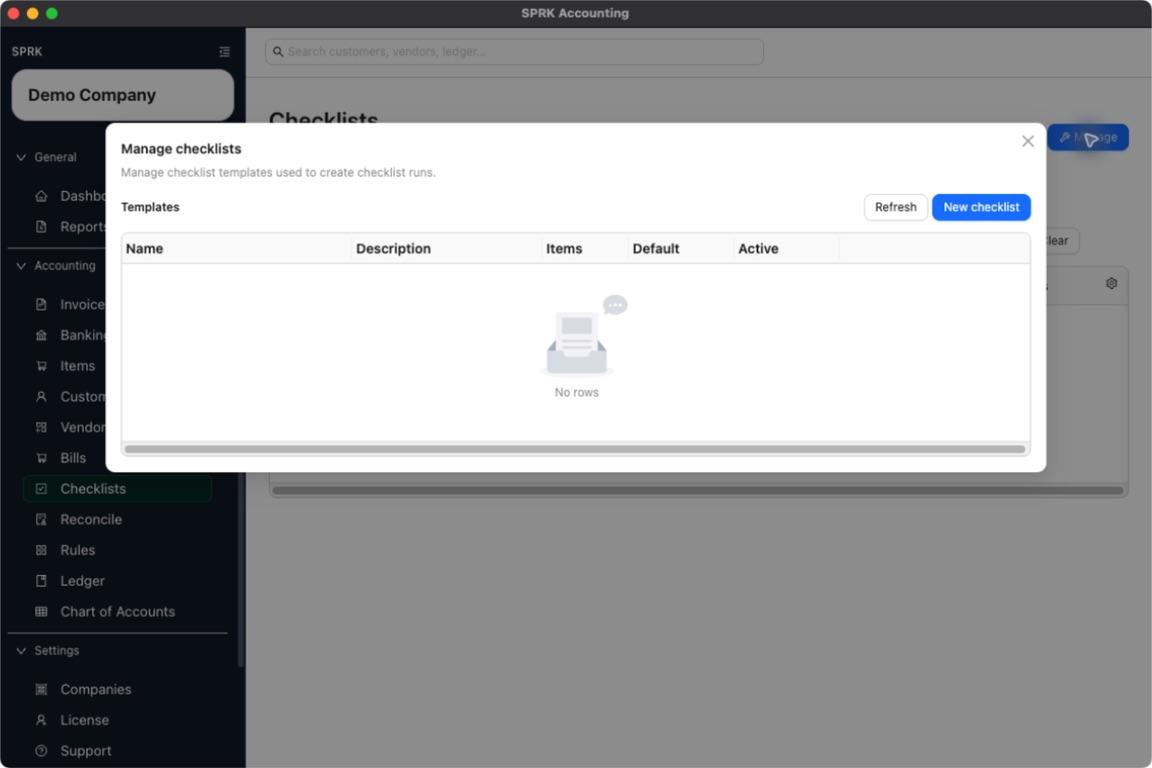
- Select
Managewhen you want to work with templates. - In
Manage checklists, review the template list columns:NameDescriptionItemsDefaultActive
- Select
New checklistto create a template, orEditbeside an existing template to update one. - In the checklist editor, complete the template details:
- Enter a
Name. - Add an optional
Description. - Turn on
Default checklistonly when the template should behave as a shared default template. - If you are editing an existing template, keep
Activeturned on unless you want to retire it from future use.
- Enter a
- Build the checklist items:
- Use
Add itemto add more steps. - Enter a
Labelfor each item. - Choose the response type:
Text,Yes / No, orDate. - Add an optional item description.
- Mark
Requiredwhen the item should not be skipped. - Reorder or remove items with the item controls.
- Use
- Save the template.
- Return to the main Checklist page when you are ready to start a run from one of the active templates.
What happens next
You have a reusable checklist template that can be used to create period-specific runs.
- Creating or editing a checklist template stores checklist metadata only.
- Deleting a checklist from the manage view retires it from active use instead of posting a reversing entry.
- No template action changes balances, clears transactions, or posts to the ledger.