
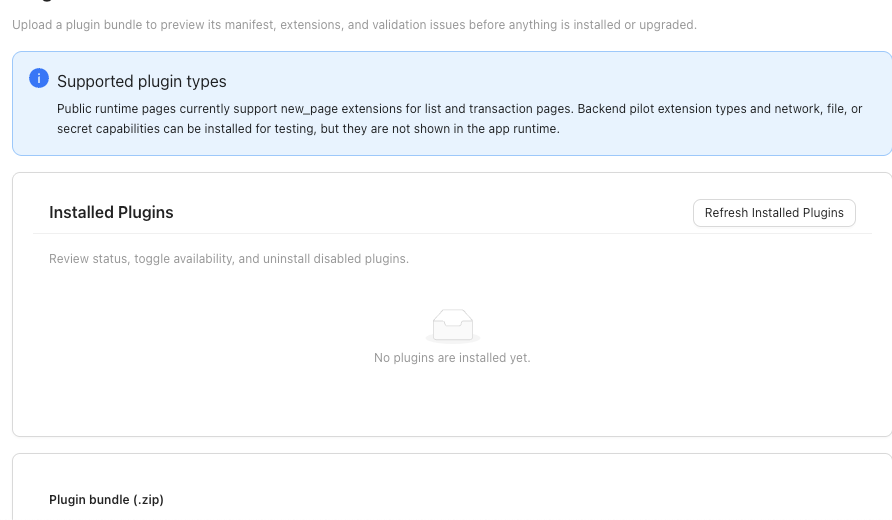
Use this support path when a Plugin (Beta) should add a page, but the page does not appear in SPRK navigation.
When to use this
Use this page after install, upgrade, enablement, or company switching when expected plugin pages are missing.
Do this first
- Confirm the active company in the sidebar.
- Open
Pluginsfrom the left sidebar. - Select
Refresh Installed Plugins. - Confirm the plugin is installed.
- Confirm the plugin is enabled.
- Review the plugin card tags:
- Lifecycle states can include
Enabled,Disabled,Requires re-enable,Blocked, orInvalid. - Page visibility states can include available, pilot-only, hidden by capability, or no visible page.
- Lifecycle states can include
- If you recently previewed a bundle, confirm the preview was actually installed or upgraded.
- If the plugin page is company-specific, switch to the intended company and check navigation again.
- Move away from the current page and back again after changing plugin state.
- For plugin-provided reports, also check the Reports page after the installed-plugin list has refreshed. Installed status alone does not guarantee a report source.
Details to capture
- Plugin name and version.
- Whether the plugin is installed, enabled, disabled, or missing from inventory.
- Active company.
- App version shown in the sidebar footer.
- Any preview warning or install message.
- Any lifecycle, page-visibility, or blocked-action message on the installed plugin card.
- Whether the sidebar shows a
Pluginsgroup. - Whether you expected a sidebar page, a list or transaction page, or a report.
What This Changes
Installing or enabling a plugin makes its supported pages available. Accounting actions inside a plugin still follow SPRK’s normal posting and review rules.
If something looks wrong
| What You See | What To Check | What To Do Next |
|---|---|---|
| The plugin was previewed but no page appears | Whether the preview was installed or upgraded | Install or upgrade the plugin before expecting pages. |
| The plugin is disabled | Installed plugin state | Enable the plugin before checking navigation. |
The plugin shows Pilot only, Hidden by capability, or no visible page |
Page-visibility state on the plugin card | Treat the plugin as installed without a visible public page until the state changes. |
The plugin shows Blocked, Invalid, or Requires re-enable |
Lifecycle state and card message | Resolve that state before expecting navigation or report visibility. |
| The page appears in one company but not another | Active company and company availability controls | Switch to the intended company and review plugin availability. |
| Preview warnings remain | Visible preview warning | Resolve the warning before installing or upgrading. |
| The page still does not appear | Installed state, enabled state, active company, and page-visibility message | Contact support with the details above. |