
Load repeated bank or credit card rule patterns from a spreadsheet or QuickBooks rules export, review the preview, and confirm only the rules that are ready for bank review.
When to use this
- You already maintain bank rule patterns outside SPRK.
- You want to move repeated description, amount, account, vendor, or split rules into SPRK without entering each rule manually.
- You want to review imported rules before they can suggest categories on pending bank transactions.
Before you start
- The correct active company is selected.
- Destination accounts, vendors, and bank or credit card accounts referenced by the rule file already exist or can be resolved during preview.
- Your file is
.xlsxor.csv. - QuickBooks rules exports should be saved as
.xlsxwhen you want SPRK to read them as QuickBooks rule data. - Generic spreadsheet or CSV rule files should include
ConditionsandActionscolumns.NameandDescriptionare recommended so imported rules are easier to review later. - Rule import changes rule setup only. Pending bank transactions are posted later from the Banking review workflow.
Steps
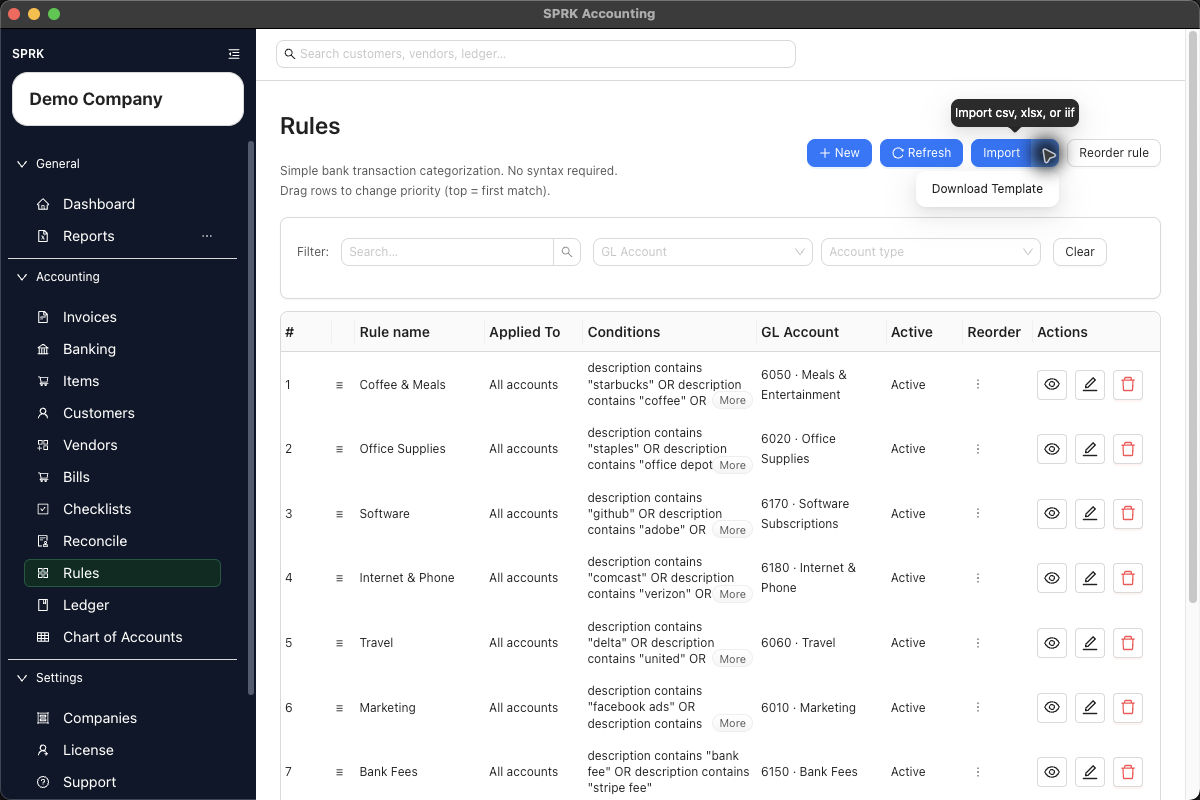
- Open
Rules. - Select the rule tab that matches the rules you want to import.
- Select
Import. - Review the import guidance before choosing a file.
- Choose the supported rule file.
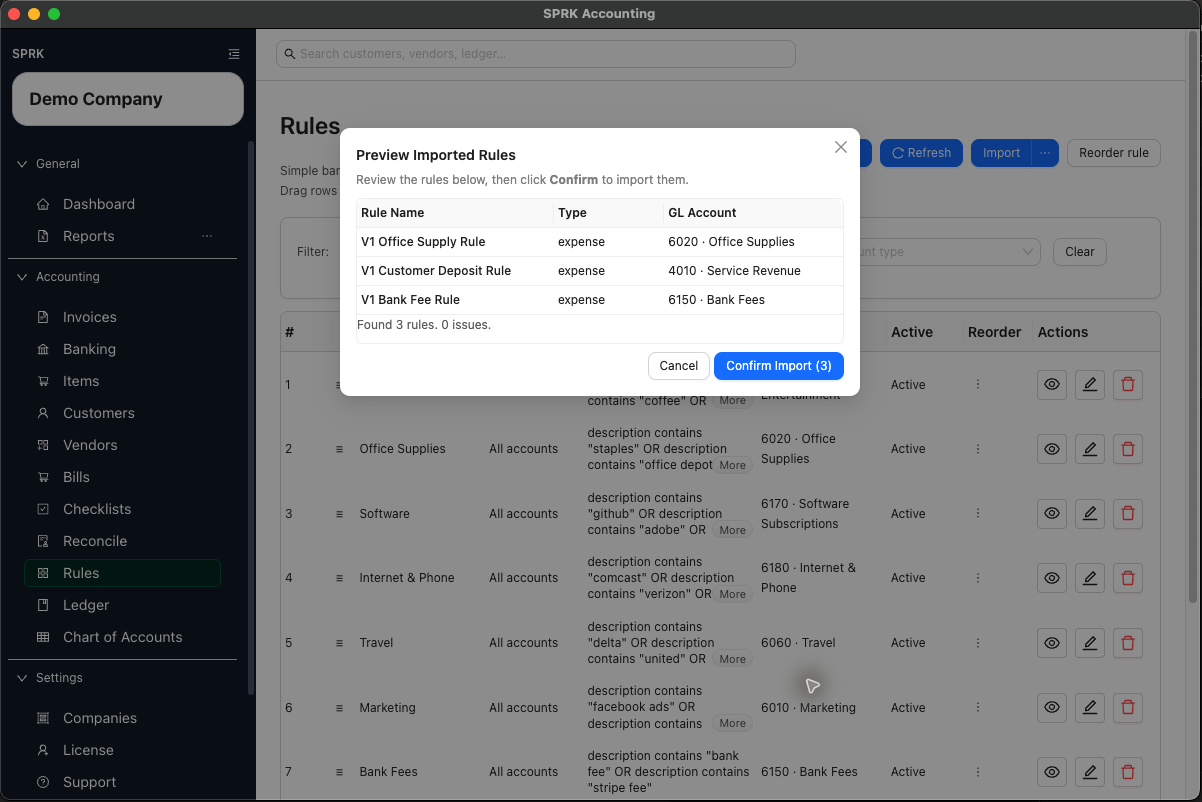
- Review the preview before confirming.
- Confirm that the preview contains the expected number of rules.
- Review each rule name, description, conditions, actions, account labels, and split instructions.
- Review any reported issues before continuing.
- Generic
ConditionsandActionsvalues can use plain text when they clearly describe the match and action. - Plain-text actions can include wording such as
set gl accountfollowed by an account name, code, or ID. - Unresolved account labels stay visible in the preview so you can correct them before relying on the rule.
- Do not confirm an empty preview or a preview that includes unresolved rules you are not ready to clean up.
- Confirm the import when the preview shows the rules you want to add.
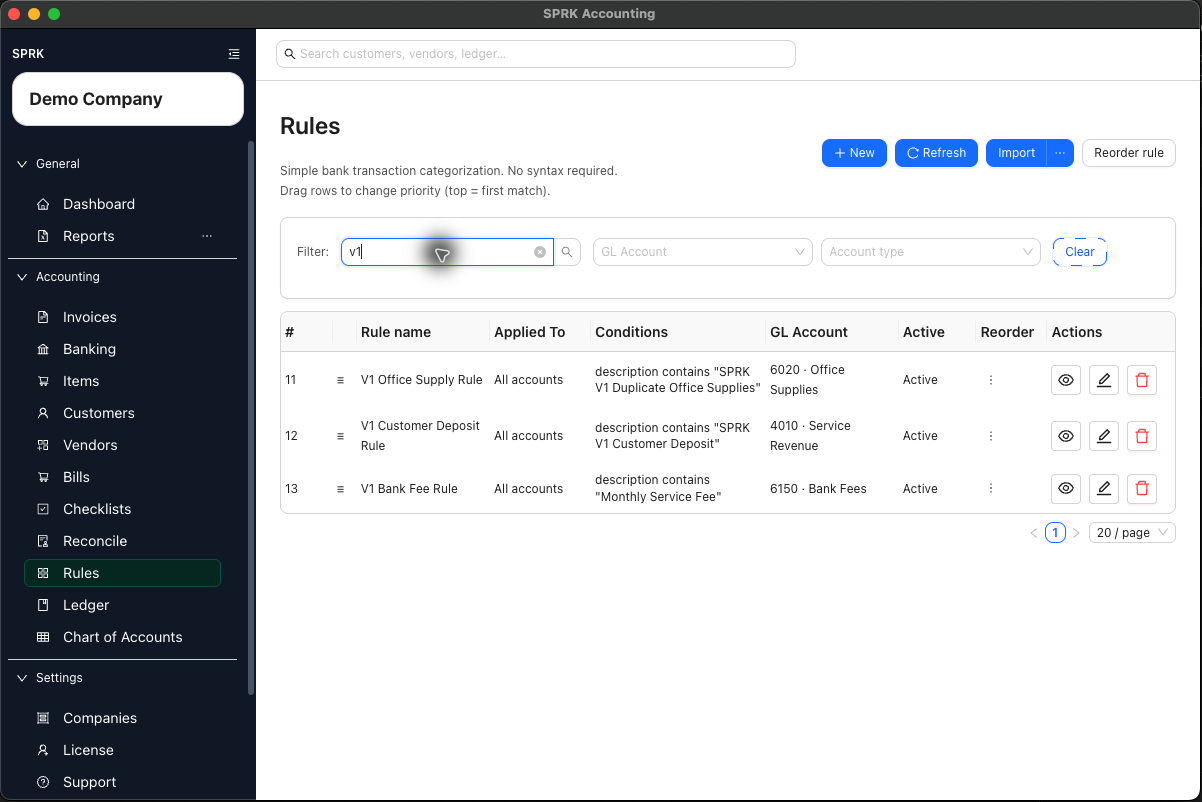
- Return to the rules list and review the imported rules.
- Adjust rule priority before relying on the rules during bank review.
What Happens When You Import
Confirmed rule imports add or update rule setup for later bank review.
- Importing rules does not confirm pending bank transactions.
- Imported rules suggest categorization on future pending bank rows; review each suggestion before confirming the transaction.
- Imported rules can prefill GL account/category choices, vendor or customer context, or split instructions only when SPRK evaluates matching pending bank transactions.
- A bank transaction affects the general ledger only after it is reviewed and confirmed from Banking.
Optional practice file: banking-rules-import.csv
If something looks wrong
| What You See | What To Check | What To Do Next |
|---|---|---|
| The preview is empty | Whether the file has supported columns and at least one readable rule row | Fix the file before confirming. |
| A generic rules file does not resolve | Whether it includes Conditions and Actions columns |
Add the required columns or use the current template. |
| A QuickBooks rules export previews as a generic spreadsheet | Whether the export was saved as .xlsx |
Save the QuickBooks export as .xlsx, then import it again. |
| Account labels remain unresolved | Whether the account name, code, or ID exists in the active company | Correct the file or add the needed setup before using the rule. |
| Imported rules suggest the wrong categories | Whether the rule priority or conditions are too broad | Edit the imported rules before confirming matching bank transactions. |
| Reports do not change after rule import | Whether matching bank transactions have been confirmed from Banking | Review and confirm pending transactions before expecting ledger reports to change. |