
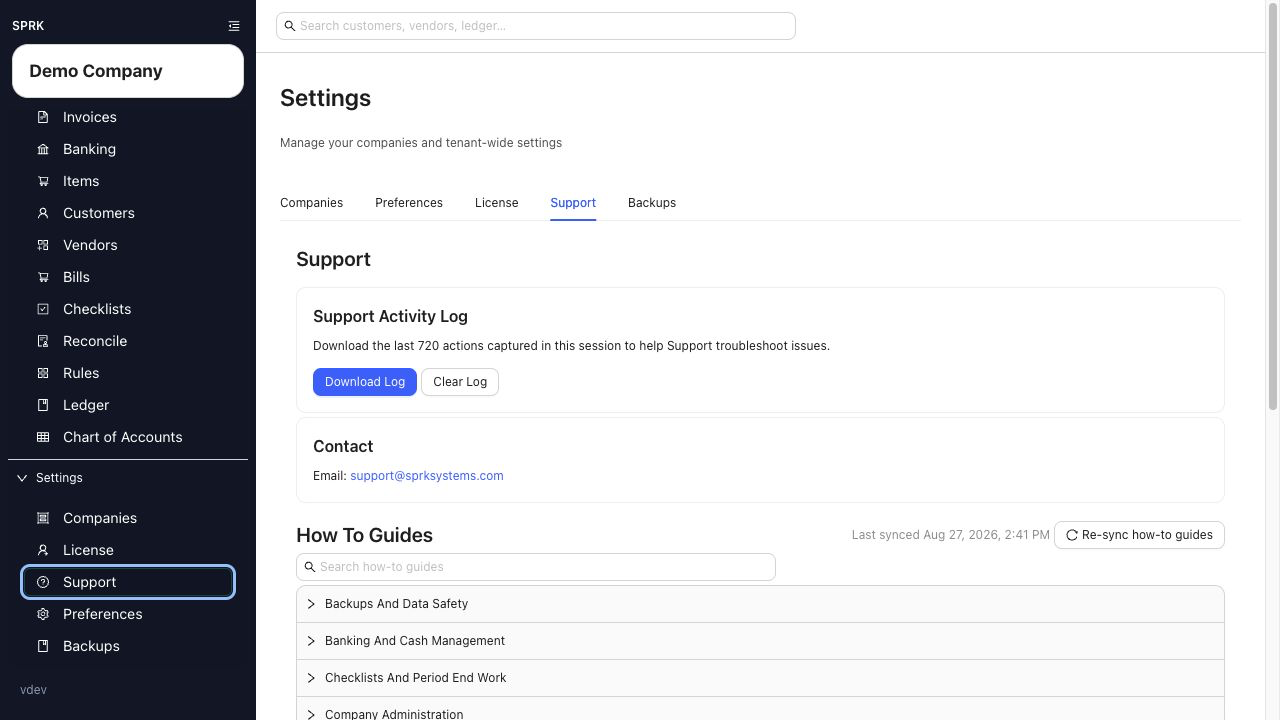
Open the Support tab to download a troubleshooting log, email the support team, and review the built-in how-to guides.
When to use this
Use this guide when you need the current activity log, the support email address, or a built-in help topic.
Before you start
- You can open the
Supportsettings tab in SPRK. - You are working in the company session where the issue occurred.
- If you want to share a session log, reproduce the issue first so the current session contains the relevant actions.
Steps
- Open
Support. - In
Support Activity Log, review whether the current session has captured actions. - Select
Download Logif you need a text file to share with support. - Select
Clear Logonly if you want to remove the current session history and start fresh. - In
Contact, use support@sprksystems.com for direct help. - In your email, include the company, page, document or account, what you expected, what happened, and the downloaded log when it is relevant.
- Expand
How To Guidesif you want a quick in-product refresher before contacting support.
What happens next
You can leave the page with a useful log, the support email address, or the help topic you need.
If something looks wrong
| What You See | What To Check | What To Do Next |
|---|---|---|
| You need help with a specific record | Whether your email names the company, page, document or account, and visible message | Add those details and attach the log when it helps explain the issue |
| You cannot find the expected page, action, or result | Looking for channels or guided-session actions that are not currently visible | Use the options shown in the current Support tab |