
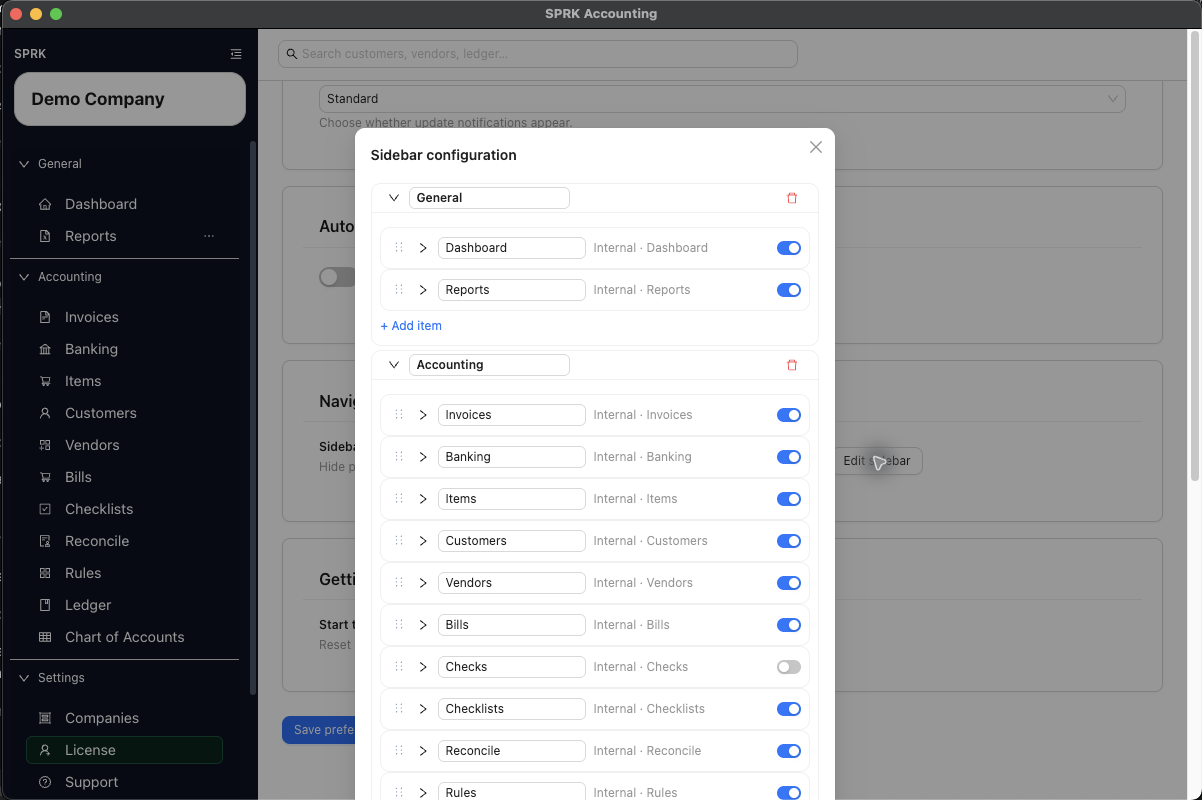
Use the sidebar editor in Preferences to rename sections, reorder links, hide items, and add external links for your own navigation setup.
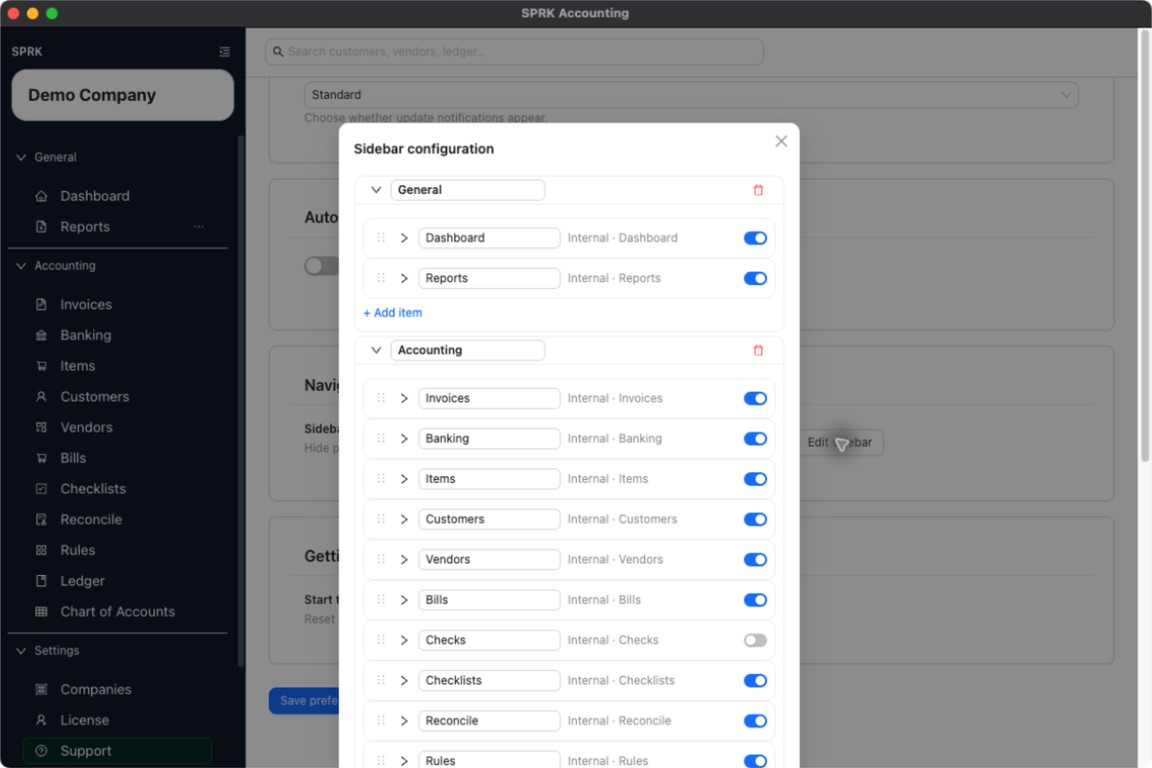
When to use this
Use this guide when you want the left sidebar to better match how you move through SPRK each day without changing underlying accounting data.
Before you start
- You are signed in to SPRK.
- You know which pages you want to keep, rename, reorder, or hide.
Steps
- Open
Preferences. - In the
Navigationcard, selectEdit sidebar. - Review the sidebar configuration modal.
- Update sections or items as needed:
- Rename a section or item label.
- Drag items to change their order.
- Hide pages you do not want shown in your sidebar.
- Add an external link when you want quick access to a related destination outside SPRK.
- If an item supports icon changes, choose a different icon.
- Save the sidebar configuration when you are finished.
- Review the live sidebar to confirm the layout now matches your intended navigation.
What happens next
Your sidebar reflects your saved navigation preferences while keeping required system access in place.
- The new order and visibility apply to your navigation; hidden destinations remain available through supported menus and search.