
Set tenant-level defaults for future companies and apply the same accounting policy choices to selected active companies when your firm wants a consistent setup.
When to use this
Use this guide when your workspace has a valid tenant license and you want new companies to start with consistent account-field and accounting edit-policy settings.
Before you start
- You can open
Settings. - The
Defaultstab is visible. - You know whether the defaults should affect only future companies or selected existing companies too.
- You have reviewed the companies that should receive a bulk update before applying defaults.
Steps
- Open
Settings. - Select
Defaults. - In
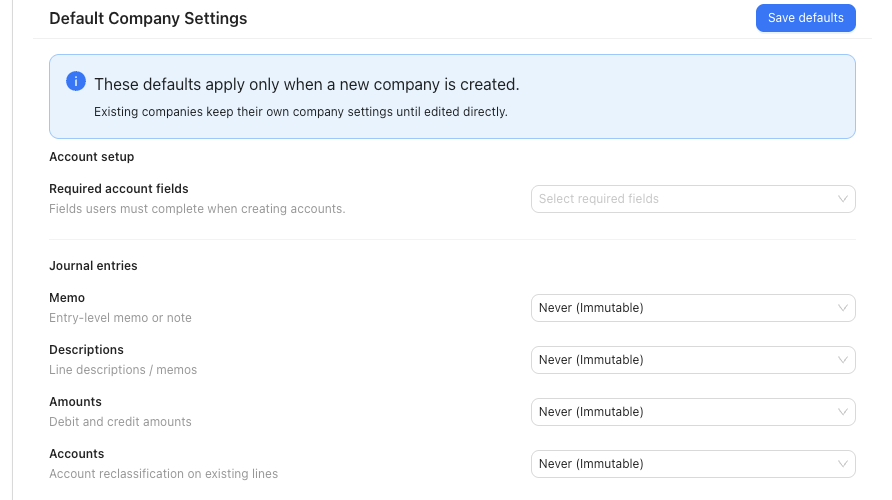
Default Company Settings, review the fields SPRK can store for new companies:Required account fieldsJournal entriesReconciliation dates
- Set
Required account fieldsto match how your firm wants account labels presented during setup.- Choosing
Nameonly can hide account-code columns and code-first labels in supported lists and account selectors. - Clearing required account fields intentionally is treated as an explicit setup choice.
- Choosing
- Review the journal-entry and reconciliation edit-policy choices before saving.
- Select
Save defaults. - If the same policy should also be applied to existing active companies, use
Apply Defaults:- Select the company checkboxes, then choose
Apply to selected. - Or choose
Apply to allwhen every active company should receive the same defaults.
- Select the company checkboxes, then choose
- Review the confirmation before applying. The confirmation explains that required account fields and accounting edit permissions are updated while other company accounting settings are preserved.
What This Changes
Save defaults stores the tenant defaults used when a new company is created. Existing companies keep their own settings until you edit them directly or use Apply to selected or Apply to all.
Bulk apply updates Required account fields, Journal entries, and Reconciliation dates policy fields on the target active companies. It does not replace unrelated company accounting settings such as control accounts, fiscal year end, posting cutoff, dimensions, or default A/R and A/P accounts.
The Defaults tab requires a valid tenant license before defaults can be saved or applied.
These tenant defaults are separate from per-company settings such as Invoice defaults, company contact fields, Payment Instructions, and Item identification. Edit those on the company record when you want to change new-invoice defaults, printed invoice content, or item-label presentation for a specific company.
If something looks wrong
| What You See | What To Check | What To Do Next |
|---|---|---|
Defaults is missing |
Tenant license and workspace access | Confirm the tenant license and your access |
Save defaults or apply actions are disabled |
Whether a valid tenant license is active | Resolve the license before saving or applying defaults |
| Account codes disappear after applying defaults | Required account fields |
Choose the account fields your company needs |
| Invoice terms or printed details look wrong | The specific company record | Edit the company’s invoice defaults and presentation settings |
| One company needs a different edit policy | Which companies are selected | Leave it out of Apply to selected and do not use Apply to all |