
Use Grid Edit when you need to clean up repeated list data faster than opening one drawer at a time.
When to use this
Use this guide when you want to make the same kind of careful cleanup across several records, especially after an import, during list cleanup, or while reviewing a table before individual drawer edits would be slower.
Before you start
- You can open a supported list page such as
Items,Customers,Vendors,Checks, or a supportedBankingtable. - The active company shown in the sidebar is the company you intend to review before you make changes.
- You understand which fields should be reviewed carefully before applying bulk edits.
Good Uses for Grid Edit
- Cleaning up customer, vendor, or item names after setup.
- Filling repeated non-posting fields that were missed during import.
- Reviewing a list for consistent defaults before heavy transaction entry.
- Preparing pending bank rows for review before the final confirm step.
Use Extra Caution
- Do not bulk edit fields when you are unsure which records belong to the active company.
- Do not treat Grid Edit as a substitute for source-document review.
- Do not change account, vendor, customer, or item fields in bulk without checking the accounting impact.
- In Banking, applying grid edits is not the same as confirming transactions.
Steps
- Open a supported list page such as
Items. - Choose how you want the page to open:
- Turn on
Grid Edit defaultinPreferencesif you want supported pages to start in grid mode automatically. - Or open the page normally, select
More, and chooseEnable Grid Modewhen needed.
- Turn on
- When the page is in grid mode, confirm the toolbar shows the changed-cell count plus
DiscardandApply Changes. - Review the table before editing:
- Confirm you are on the correct list page.
- Confirm the visible columns match the fields you want to review.
- Click directly into the cells you want to update.
- Make the repeated edits you need across the grid.
- Watch the changed-cell counter while you work so you know whether there are unapplied edits.
- Review the edited cells before you continue.
- Select
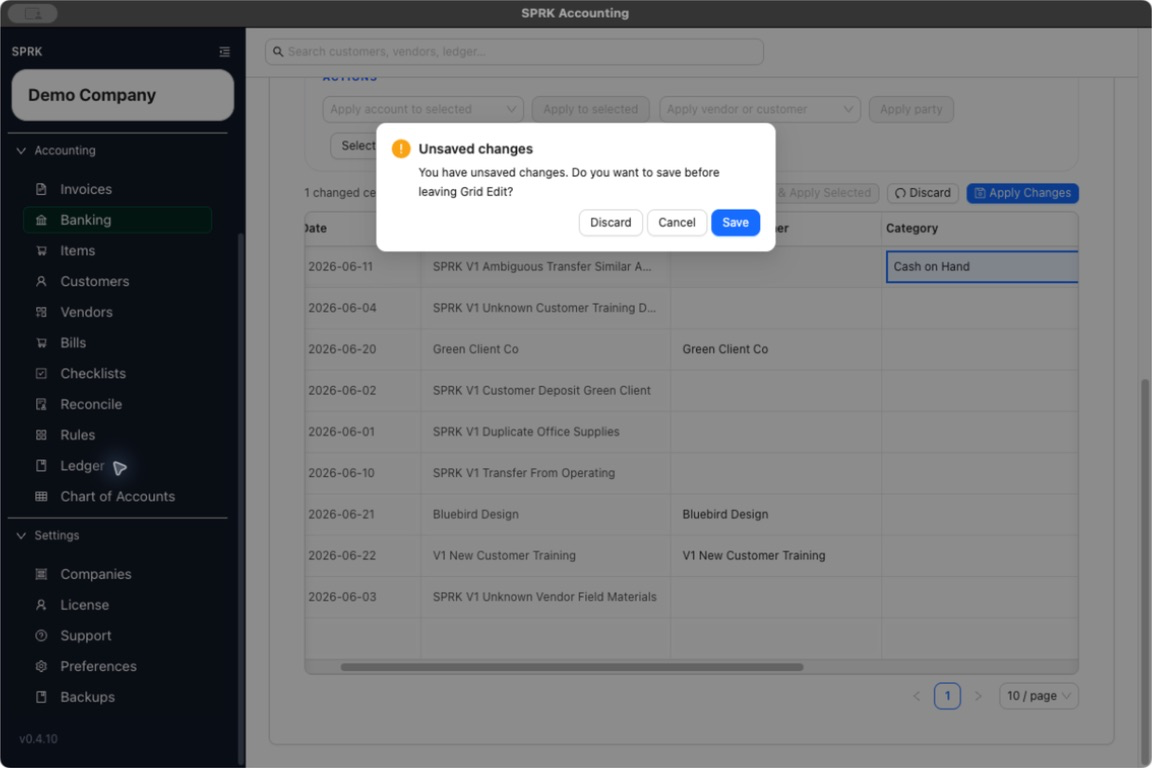
Apply Changesonly after the grid reflects the final values you intend to keep. - If you navigate away with unapplied changes, respond to
Unsaved changes:Cancelkeeps you in Grid Edit with the draft changes intact.Discardleaves the page without saving the draft changes.Saveapplies the draft changes, then continues navigation.
- If you want to leave grid mode, select
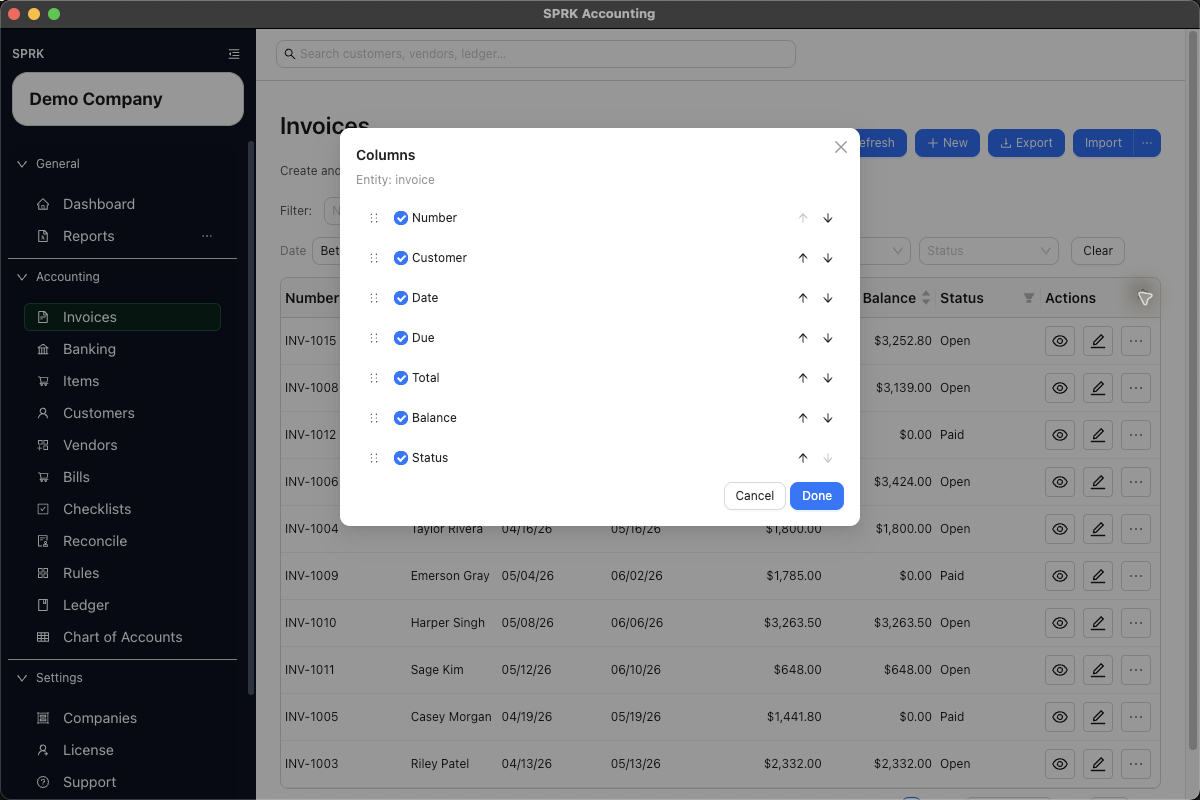
Moreand chooseDisable Grid Mode. - If you want to change which columns stay visible or where they appear, return to the standard list view and open
Column preferences:- Turn optional columns on or off as needed.
- Drag a column’s reorder handle when you want to move it into place quickly.
- Use the move-up and move-down controls when you prefer button controls or need a steadier one-step move.
- Leave required columns visible when SPRK keeps them protected.
- Use row actions in the standard list view when you need a single-record
View,Edit, or delete workflow instead of a table-wide cleanup pass.
Banking-Specific Selection Behavior
Banking uses Grid Edit for transaction-review cleanup, but Banking also has posting-sensitive bulk actions. Treat those actions separately from ordinary changed-cell tracking:
- The standard Banking
Pendingtable uses checkboxes to select rows for actions such as applying an account, applying a vendor, confirming selected rows, or deleting selected rows. - Banking Grid Edit can expose selected-row actions in the same toolbar, including
Confirm Selected, when row selection is available in that mode. - If selected Banking rows still have draft changes, the toolbar can show
Confirm & Apply Selectedso SPRK applies those edits before attempting confirmation. - A Banking row can be ready to confirm based on its saved categorization even if a draft category cell is currently blank in Grid Edit. Review the saved row state and changed-cell count before deciding the row is incomplete.
- Row selection is Banking-specific guidance. Do not assume every Grid Edit table in SPRK supports selected rows or an in-grid confirmation action.
- If the Banking changed-cell counter is active, apply or discard those Grid Edit changes before running bulk account, vendor, confirm, delete, or select-categorized actions.
- Applying Grid Edit changes saves the draft cell edits; confirming a bank transaction is still the step that posts or links the ledger result.
What happens next
You can review and apply repeated list updates from one table instead of opening each record individually.
- Entering or reviewing draft grid changes does not post to the general ledger by itself.
- Applying list edits updates the saved record data for that page, not a new journal-entry workflow.
- The
Grid Edit save regardlesspreference changes this behavior: when it is on, SPRK saves unapplied Grid Edit changes during navigation instead of showing the prompt. Leave it off when you want the explicitDiscard,Cancel, orSavedecision. - On Banking, applying draft Grid Edit changes prepares selected rows for review, but it does not replace the separate transaction confirmation step.
- The accounting impact still depends on the fields and downstream workflows tied to the records you changed.
- Banking confirmation remains a separate posting workflow; apply any draft grid edits before using bulk Banking actions such as confirm selected.
If something looks wrong
| What You See | What To Check | What To Do Next |
|---|---|---|
Unsaved changes appears while leaving Grid Edit |
Whether the edits should be kept | Choose Cancel to continue reviewing, Discard to leave without them, or Save to apply them and continue |
| You cannot find the expected page, action, or result | Looking for Column preferences while still in grid mode |
In the current Items workflow, that control is visible in the standard list view |