
Open Preferences to manage app-wide appearance, formatting, date display, update notification, navigation, automation, and getting-started settings.
When to use this
Use this guide when you want to review or change how SPRK looks and behaves for your user profile across the app.
Before you start
- You are signed in to SPRK.
- The active company shown in the sidebar is the company you intend to use while validating context-sensitive pages.
Steps
- Confirm the sidebar company selector shows the company you expect before you continue.
- Open
Preferencesfrom theSystemsection in the sidebar. - Review the
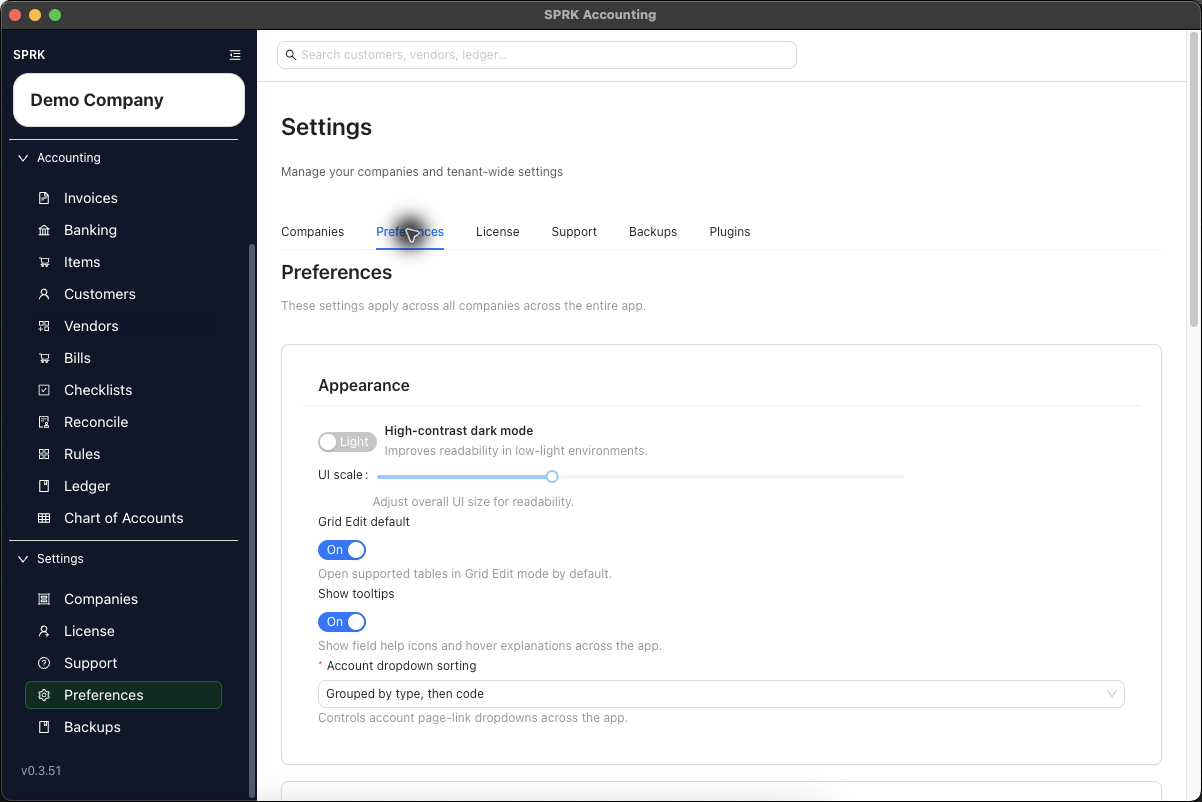
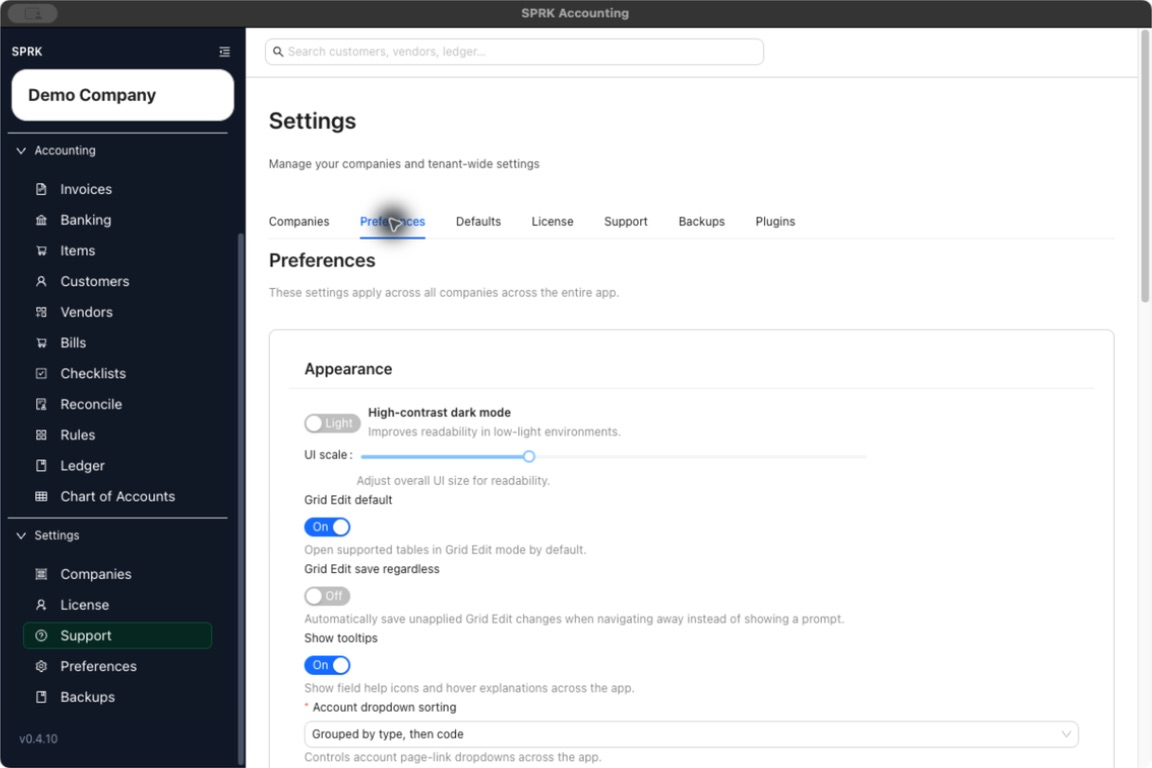
Appearancecard:- Use the theme toggle to switch between light and dark mode.
- Adjust
UI scaleif you need larger or smaller interface sizing. - Turn on
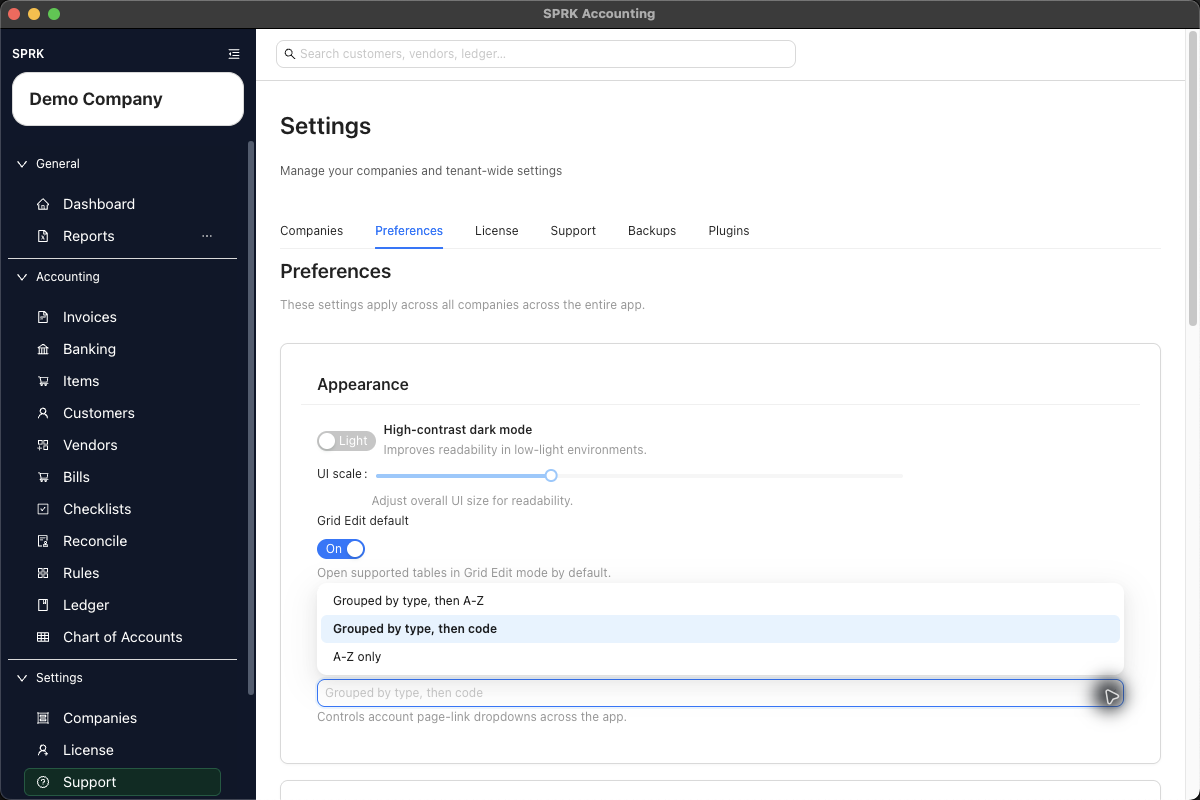
Grid Edit defaultif you want supported list pages to open in Grid Edit mode automatically. - Turn on
Grid Edit save regardlessif you want SPRK to save unapplied Grid Edit changes automatically when you navigate away. Leave it off to receive theUnsaved changesprompt withDiscard,Cancel, andSavechoices. - Turn
Show tooltipson or off to show field help icons and hover explanations across the app where SPRK defines them. - Choose
Account dropdown sortingwhen you want supported account selectors to be easier to scan. The visible choices are grouped by type then name, grouped by type then code, or flat A-Z. - The current helper text says this opens supported tables in Grid Edit mode by default.
- Review the
Formattingcard:- Choose a
Number format. - Choose a
Currency format. - Choose a
Date format. SPRK’s standard default isMM/DD/YYYY, but your saved profile can use another visible format such asYYYY-MM-DD,YYYY/MM/DD,MM-DD-YYYY,DD-MM-YYYY, orDD/MM/YYYY. - Choose a
Decimal data entrystyle.
- Choose a
- When you type dates directly into date fields elsewhere in SPRK, use the order implied by your selected date format. Many date fields accept typed values with separators, and compact entries can normalize to the saved display format after the field accepts them.
- Review column and list preferences when you need faster table cleanup:
- Use
Grid Edit defaultto choose whether supported list pages start in Grid Edit mode. - Open
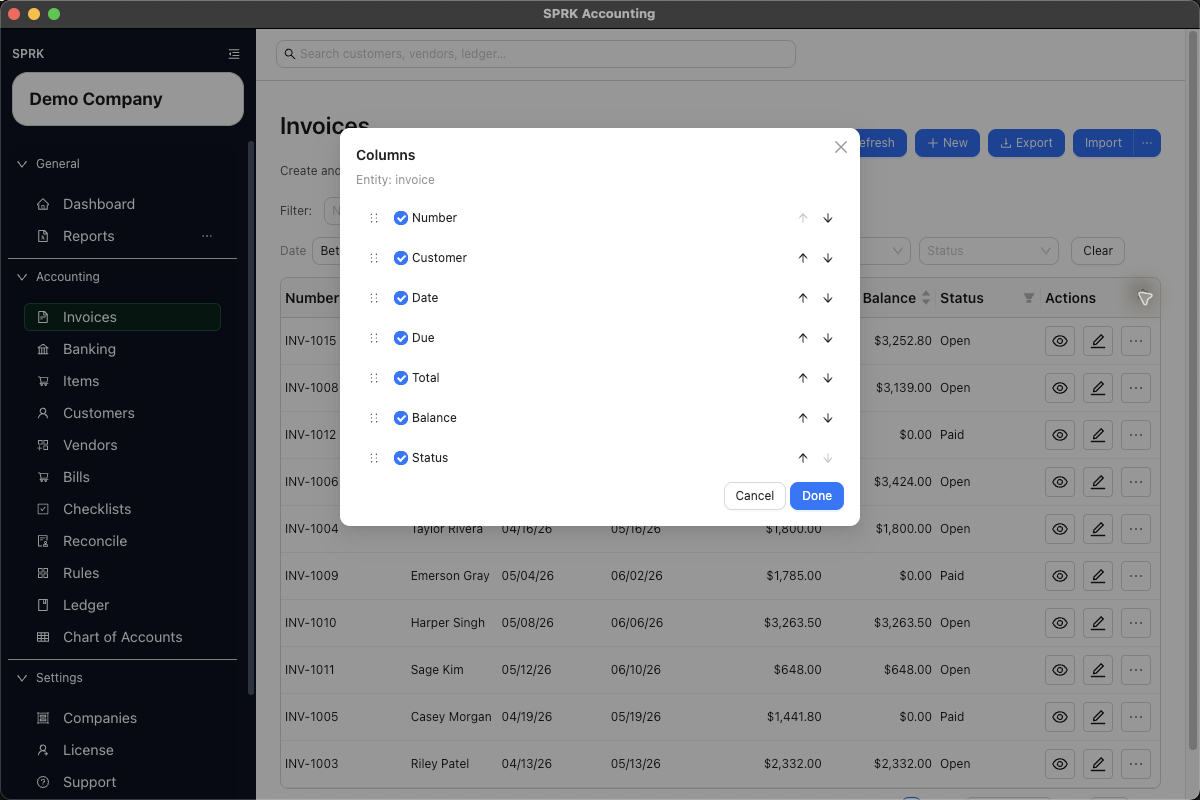
Column preferencesfrom supported tables to choose visible optional columns and change their order. - Drag a column’s reorder handle when you want to move it quickly, or use the move-up and move-down controls when keyboard or button controls are easier.
- Leave required columns visible when SPRK keeps them protected.
- Use
- Review the
Updatescard and choose the automatic update frequency you want. - Review the
Automationcard if you want to adjust supported default-account helpers. - Review the
Navigationcard if you want to tailor the sidebar layout later. - Review the
Getting startedcard if you want the dashboard tour to appear again. - Save preferences when you finish if the page does not auto-save the changes you made.
What happens next
Your user-level preferences are applied across the SPRK app, including display, formatting, date-entry interpretation, grid-edit startup behavior, and update prompt behavior.
- Display and formatting updates change how information is shown to you, not the underlying transaction amounts.
- Changing
Date formatchanges how date fields display and interpret typed dates; it does not rewrite posted transaction dates. - Turning on
Grid Edit defaultchanges how supported pages open for your user profile, not which records exist or how they post. - Turning on
Grid Edit save regardlessremoves the navigation prompt for unapplied Grid Edit changes and saves them as you leave. It does not confirm Banking transactions or create ledger postings by itself. - Turning
Show tooltipson or off changes visible help affordances only; it does not disable the underlying fields, workflows, or validation rules. - Changing
Account dropdown sortingchanges the order used by supported account page-link dropdowns across the app, not the chart of accounts itself. - Changing column visibility or column order affects your working view on supported tables, not the accounting records behind those rows.
- Resetting the getting-started tour shows the onboarding prompts again.
If something looks wrong
| What You See | What To Check | What To Do Next |
|---|---|---|
| Grid edits save when you expected a prompt | Grid Edit save regardless |
Turn the preference off when you want to choose Discard, Cancel, or Save during navigation |