
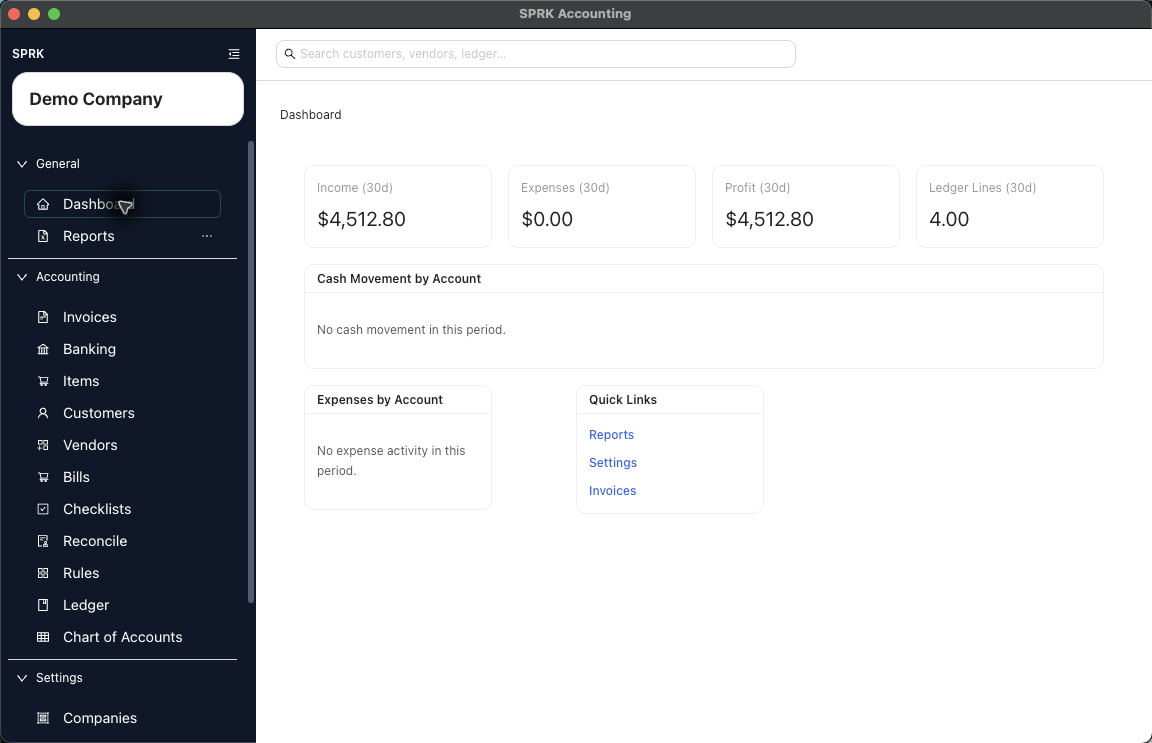
Use the sidebar, section groups, quick links, and collapse control to move through the main SPRK pages.
When to use this
Use this guide when you want to understand how the app is organized and how to move from one major page to another.
Before you start
- You are signed in to SPRK.
- A company is active in the sidebar.
Steps
- Use the left sidebar as the main navigation control.
- Read the app in its current top-level groups:
GeneralAccountingSettings
- Select any page label in the expanded sidebar to open that area in the main panel.
- If you want a narrower sidebar, use the collapse button at the top of the sidebar.
- In collapsed mode, use the icon-only sidebar and hover or recognize the icons before selecting a destination.
- If you are on the dashboard, use
Quick Linksfor fast access to the linked pages that are currently exposed there. - When you need settings-style system work, use the
Settingssection rather than looking for a separate top navigation bar.
What happens next
You can move reliably between the app’s major work areas and understand whether you are navigating by full labels, icons, or dashboard quick links.
If something looks wrong
| What You See | What To Check | What To Do Next |
|---|---|---|
| You cannot find the expected page, action, or result | Looking for page tabs across the top of the app | Most page changes happen from the sidebar |
| You cannot find the expected page, action, or result | Searching for one generic settings page | Settings-style pages are exposed as specific destinations like Companies, License, Support, and Preferences |