
Import grouped invoice rows from a spreadsheet or CSV after reviewing customer, line, and account-routing details.
When to use this
- You already have invoice rows in a spreadsheet or CSV.
- You want SPRK to create grouped invoice documents after preview.
- You need to review whether imported invoices should stay open or be treated as paid-now.
Before you start
- Confirm the active company.
- Confirm customers, items, and income accounts are ready for the file.
- If the file includes taxed Open or paid-now invoices, configure the company default Sales Tax Payable account or include a payable account in the file.
- Review whether
Receive toshould route each invoice to Accounts Receivable or a settlement account. - Keep the original file available until import results have been reviewed.
Steps
- Open the invoice import path from
Invoices. - Choose the invoice file.
- Review the preview before confirming.
- Check grouped document fields such as:
Customer NameDue DateSKUorItemMemoTax RateSales Tax Payable AccountorSales Tax Payable Account IDStatusAmountLine AmountExtended Amount
- Review account-routing headers when the file includes them:
Receive toDefault Income AccountLine Income Account
- Confirm that each invoice has a customer, at least one line, valid line account or item details, positive quantities, and a non-duplicate invoice number.
- Confirm the import only after warnings and routing choices have been reviewed.
What Happens When You Import
SPRK creates invoice documents from grouped rows after preview. Receive to follows the same routing rule as the invoice drawer: an Accounts Receivable control account keeps the imported invoice on the accrual path, while a non-control cash, bank, or credit-card settlement account imports as paid-now. Default Income Account fills blank line income accounts; Line Income Account remains the posting source of truth. A sales-tax account in the file overrides the company default for that invoice.
Imports that try to mix receivable control routing and settlement-account routing for the same invoice are rejected instead of silently guessing the posting path. Taxed Open and paid-now invoices are also rejected when neither the file nor the company supplies an active liability account. Taxed drafts can be imported without that account and completed before posting.
If something looks wrong
| What You See | What To Check | What To Do Next |
|---|---|---|
| The preview does not group lines as expected | Invoice number, customer, and line fields | Fix the file before confirming |
| The file leaves a customer unresolved | Customer name or customer identifier in the file | Add or correct the customer before import |
| An invoice routes as paid-now | The Receive to account |
Use an Accounts Receivable control account when the invoice should remain open |
| A line posts to the wrong income account | Line Income Account and fallback Default Income Account |
Correct the account values before confirming |
| A taxed invoice cannot be imported as Open or paid-now | Sales Tax Payable Account in the file and the company default |
Select the active liability account used for collected sales tax |
| The import reports duplicate invoice numbers | Existing invoice numbers and file invoice numbers | Resolve duplicate numbers before confirming |
Practice and examples
- Practice file: invoice-import-grouped-lines.csv
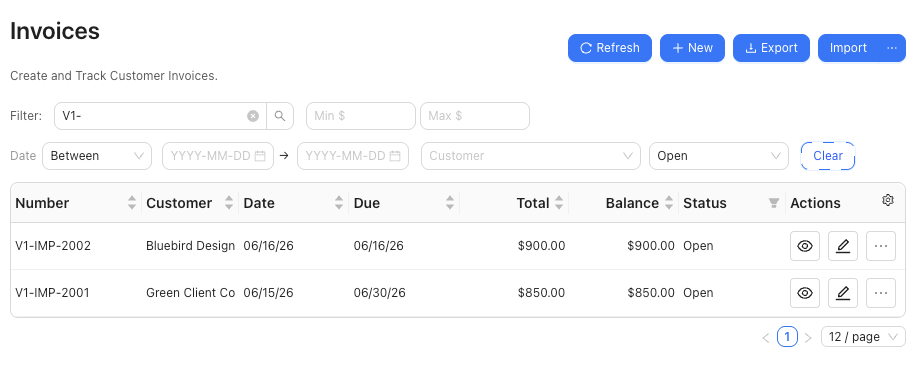
The grouped-line import example shows open invoices created from invoice-import-grouped-lines.csv.