
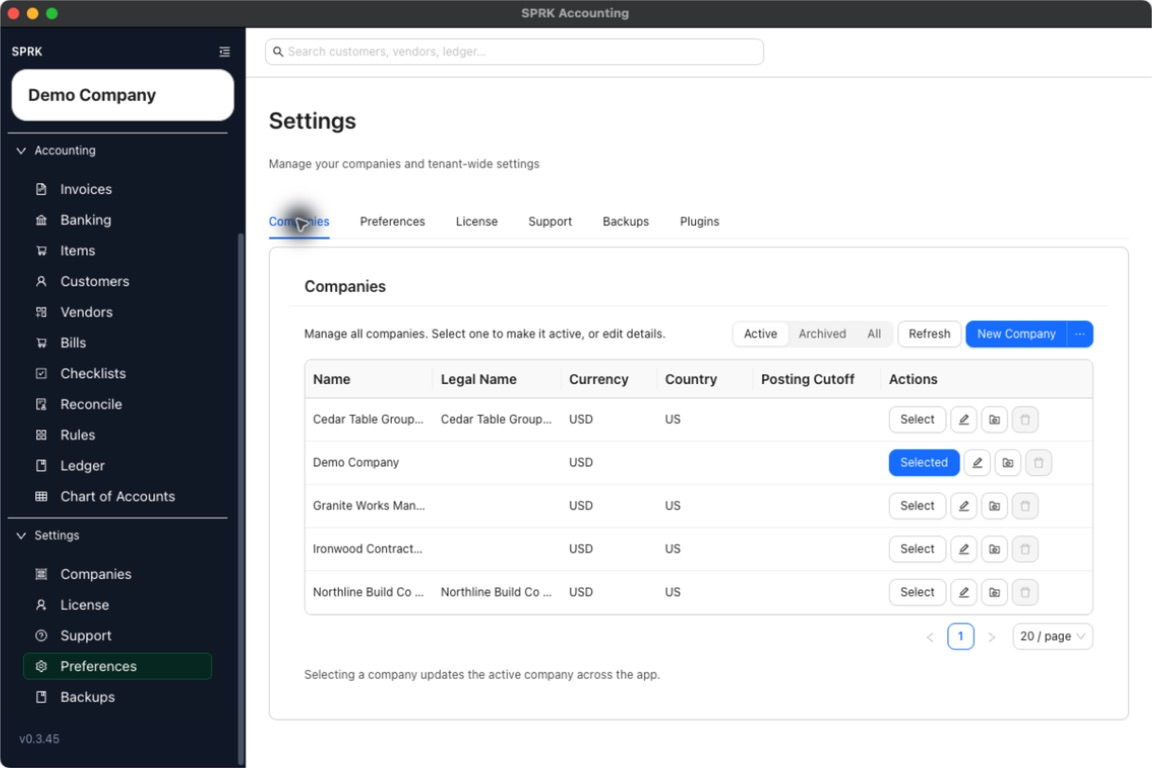
Change the active company from the Companies page so the rest of SPRK uses the company you intend to work in.
When to use this
Use this guide when you need to move from one SPRK company to another without signing out, or when you want to verify the active company before creating records.
Before you start
- You can open
Companiesfrom the left sidebar. - More than one company is available in your workspace if you plan to switch.
Steps
- Open
Companiesfrom the left sidebar. - Find the company you want to work in.
- Select
Selectin that company’s row. - Confirm that the button changes to
Selected. - Check the active company shown in the sidebar before entering transactions, importing data, or editing records.
- Move to any working page in the app and verify you are now operating in the intended company.
What happens next
The selected company becomes the active company across the app. New records, imports, reports, and settings work use that company until you switch again.