
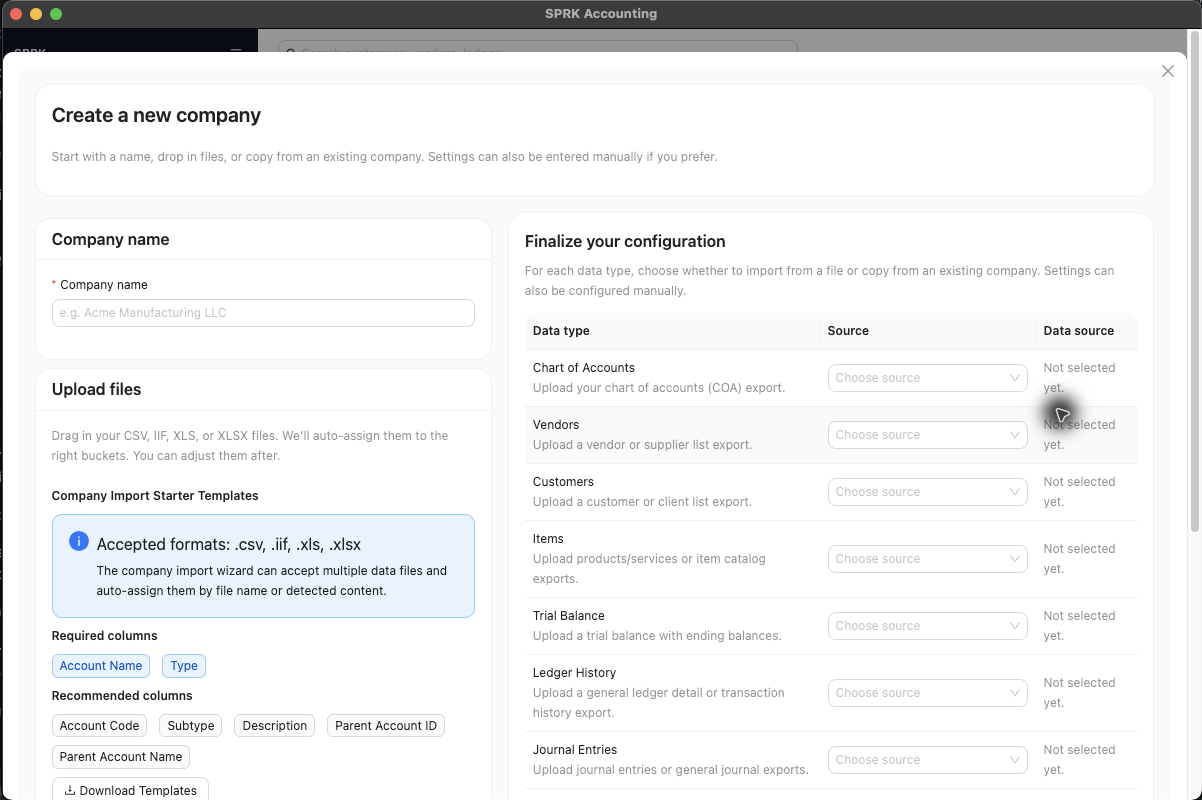
Create or import a company in SPRK from a QuickBooks Desktop IIF export using the Companies page.
When to use this
Use this guide when your source data comes from QuickBooks Desktop and you exported it as an .iif file.
Before you start
- You can open
Companiesfrom the left sidebar. - You exported the source data from QuickBooks Desktop as an
.iiffile. - You have room to create another company in your workspace.
Steps
- In QuickBooks Desktop, export the data you want to migrate as an IIF file.
- In SPRK, open
Companiesfrom the left sidebar. - Open the menu attached to
New Company. - Select
Import from QBD (IIF). - In the file picker, choose the
.iifexport. - Wait for SPRK to complete the import and refresh the list.
- Confirm that the imported company appears in the
Companiestable. - Review the imported company before daily use, with extra attention to chart of accounts, customers, and vendors.
- Review customer billing addresses after import when the source file includes QuickBooks
BADDR1throughBADDR5fields:- SPRK can preserve the first billing line as address line 1.
- Remaining non-city billing lines can be kept in address line 2.
- A final
City, ST ZIPline can populate city, state, and postal code when it is parseable. - Clean up any customer whose address did not follow that pattern before sending customer-facing invoices.
What happens next
SPRK imports the QuickBooks Desktop IIF file and adds the resulting company to the companies list.