
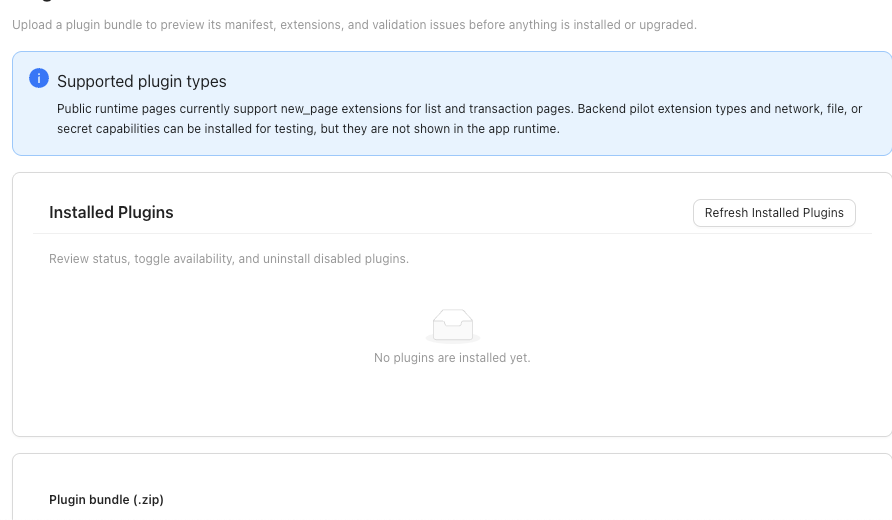
Use the Plugins tab to review installed Plugins (Beta), refresh their status, and understand what each visible plugin state means.
Quick reference
| Area or State | Meaning | Where It Matters |
|---|---|---|
Installed Plugins |
Lists plugins already known to the workspace. | Review it before expecting plugin pages, reports, or actions to appear. |
Refresh Installed Plugins |
Reloads the installed-plugin list and status messages. | Use it after install, upgrade, enablement, disablement, or company switching. |
Select Plugin Bundle |
Starts preview for a trusted plugin file. | Use it only when your firm intends to inspect, install, or upgrade that plugin. |
| Preview details | Shows plugin name, publisher, version, description, warnings, and available action. | Review it before installing or upgrading. |
Enabled |
The plugin is available for use where SPRK exposes its pages or reports. | Check navigation and Reports after refreshing. |
Disabled |
The plugin remains installed but is not available for normal use. | Enable it before expecting pages or reports. |
Blocked, Invalid, or Requires re-enable |
SPRK needs attention before the plugin should be treated as ready. | Resolve the visible message before using the plugin. |
| Page availability message | Explains whether the plugin can add pages or reports. | Use it when expected plugin pages do not appear. |
Details
Open Plugins from the left sidebar to review installed Plugins (Beta). Confirm the active company before checking any company-specific plugin page.
Opening or refreshing the Plugins tab is review-only. Installing, enabling, disabling, or uninstalling a plugin changes plugin availability and navigation, not existing ledger balances.
Installed plugin cards can show lifecycle states such as Enabled, Disabled, Requires re-enable, Blocked, or Invalid, and page-visibility states such as available, pilot-only, hidden by capability, or no visible page.
If something looks wrong
| What You See | What To Check | What To Do Next |
|---|---|---|
The Plugins tab is missing |
Workspace access and license status | Review license information or contact support before installing a plugin. |
Installed Plugins is empty |
Whether any plugin has been installed | Install or preview a trusted plugin before expecting plugin pages. |
| Preview shows a warning | The visible preview warning and available action | Resolve the warning before installing or upgrading. |
| A plugin page does not appear after install | Installed status, enabled state, page availability, and active company | Refresh installed plugins, then check navigation again. |
| A plugin report is missing | Plugin enabled state and report availability message | Refresh installed plugins and review Reports after the plugin is ready. |