
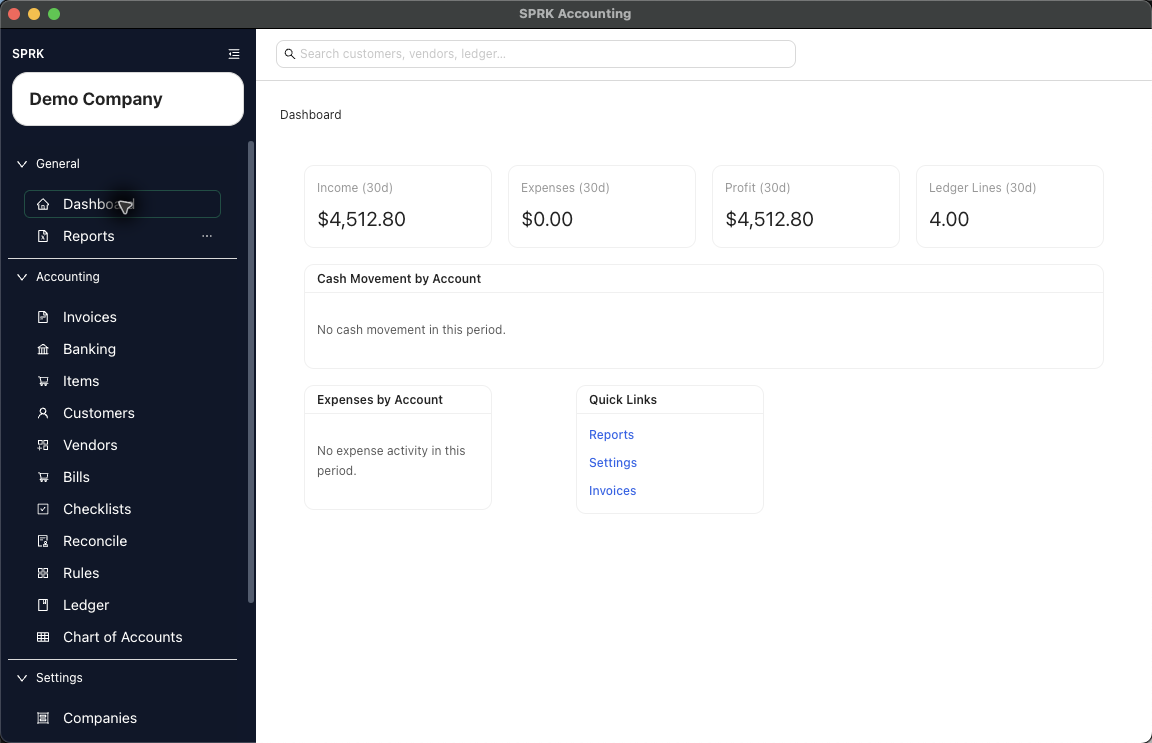
Enter the app from the local sign-in screen, or complete the startup choice flow if this is the first time the workspace is being opened.
When to use this
Use this guide when you need to enter the SPRK desktop app and understand the difference between a first-time startup path and a returning login.
Before you start
- The SPRK desktop app is open.
Steps
- Open SPRK.
- If onboarding has already been completed in this workspace, use the
Loginbutton on theLocal Only loginscreen. - If onboarding has not been completed yet, choose the startup path that fits your goal:
Start with Democreates a demo company and continues into the app.Import existing dataopens the import wizard from the startup flow.Skipcreates a blank company and continues into the app.
- If the startup flow asks how much support you want, choose whether to start with tips or skip them.
- Continue into the application after the company is created or selected.
What happens next
You enter SPRK and land in the main application shell with sidebar navigation and the app header available.