
Run transaction detail from the Reports page, narrow the results to the account or ledger slice you need, and export or print the report for review outside SPRK.
When to use this
Use this guide when you need transaction-level report detail for an account, subtype, or ledger slice and need to send the results to a client or reviewer as a spreadsheet or PDF.
Before you start
- You are signed in to SPRK.
- The correct active company is selected.
- The transactions you expect to review are already posted.
- You know the date range and account you want to report on.
Steps
- Open
Reportsfrom the left sidebar. - Select the report view that exposes transaction detail:
- Use
General Ledgerwhen you want ledger activity by account for a date range. - Use
Account Detailwhen you want detail for one selected account.
- Use
- Set the date range for the activity you need to review.
- Narrow the report before you export:
- In
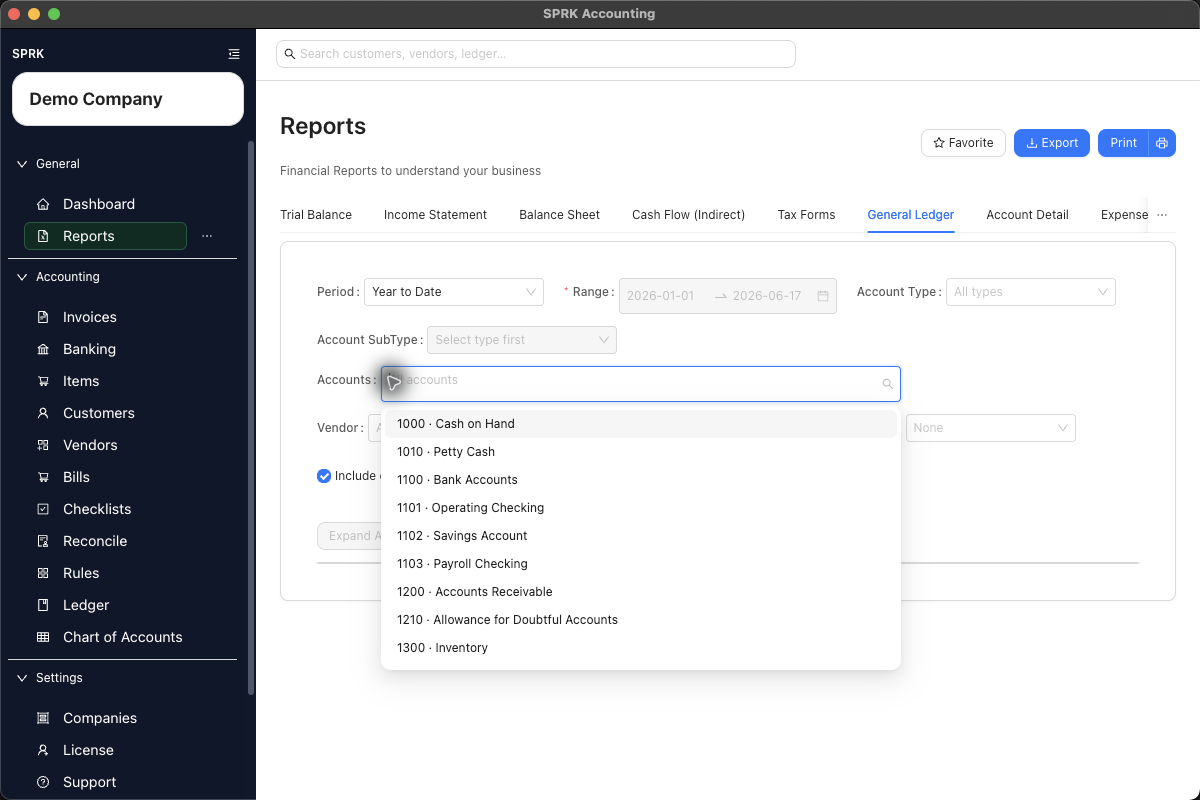
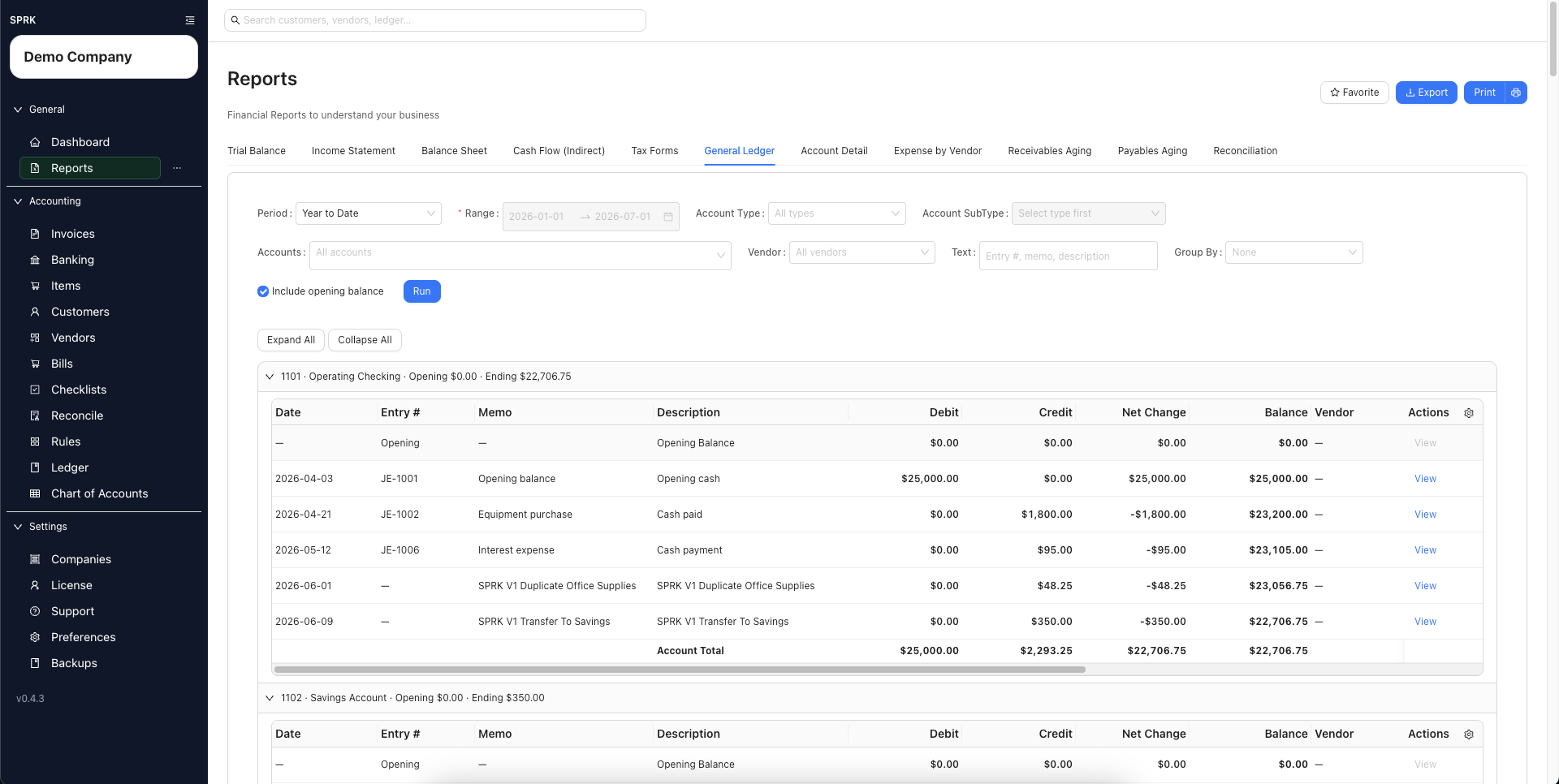
General Ledger, use the current filter bar as needed:Account Type,Account SubType,Accounts,Vendor,Text,Group By, andInclude opening balance. - In
Account Detail, select the required account and optional text filter. - Account selectors follow your
Account dropdown sortingpreference, so the list may be grouped by account type or shown as a flat A-Z list depending on your saved preference. - Supported report selectors are searchable and sorted by their visible labels, but each report still exposes its own filter set.
- In
- Select
Run. - Review the results before exporting:
- Confirm the active company is correct.
- Confirm the date range is correct.
- Confirm the report rows are limited to the account or ledger slice you intended.
- Confirm the transaction dates, descriptions, accounts, debits, credits, balances, and any visible dimension columns match the review request.
- Use the visible column controls on transaction-detail tables such as
General LedgerandAccount Detailwhen you need to hide, show, or reorder review columns before export or print.- Treat column controls as a review-scope setting for the current report table.
- After changing visible columns, open the exported or printed file and confirm it contains the column set you intended.
- To create a spreadsheet file for the active report context, select
Export. - To create a PDF, select
Print, then use the system print dialog to save or print the report as a PDF.- If you are working inside a register modal opened from vendor or account-detail review,
ExportandPrintuse the modal’s current filtered rows and visible columns, not a broader report package.
- If you are working inside a register modal opened from vendor or account-detail review,
- Open the exported or printed file and confirm it contains the expected filtered detail before sending it outside SPRK.
- Current General Ledger CSV exports include
Account Code,Account Name,Date,Entry #,Memo,Description,Name,Debit,Credit, andBalance. - If the current report includes dimensions in the live table, confirm those dimensions are also present in the exported output where SPRK exposes them.
- Current General Ledger CSV exports include
What happens next
SPRK produces an outbound copy of the current report results for review outside the app.
- The report and its export reflect the posted activity for the current company, dates, and filters.
- Export and print actions do not change ledger balances.
- The exported or printed file reflects the report filters in effect at the time you create it, rather than exporting unfiltered rows from other pages of the result set.
- Transaction-detail column controls change the review table you are looking at; confirm exported or printed output after changing columns.
- Register-level export and print reflect the open register context and title.
- The visible Reports page exports or prints the active report context. Do not assume SPRK will create a multi-report package unless that action is visible in your app.
- Report exports are review outputs, not tax filing, payroll filing, or statutory submission workflows.
Troubleshooting
If the account you need is not available in the Accounts filter, or the selector shows No data after you type the account name:
- Check
Chart of Accountsand confirm the account exists for the active company. - Confirm the account is active.
- Confirm the account name or code matches what you are searching for.
- Try the other transaction-detail report view, such as
Account Detailinstead ofGeneral Ledger. - Open
Preferencesand checkAccount dropdown sortingif the account appears in an unexpected part of the list. - If the account exists and is active but still does not appear in the report filter, check whether it is a nonposting summary account or otherwise restricted from that selector.
- Contact support with the company name, account name, account code, report name, date range, and a screenshot of the missing account selector if the account should be eligible but still does not appear.