
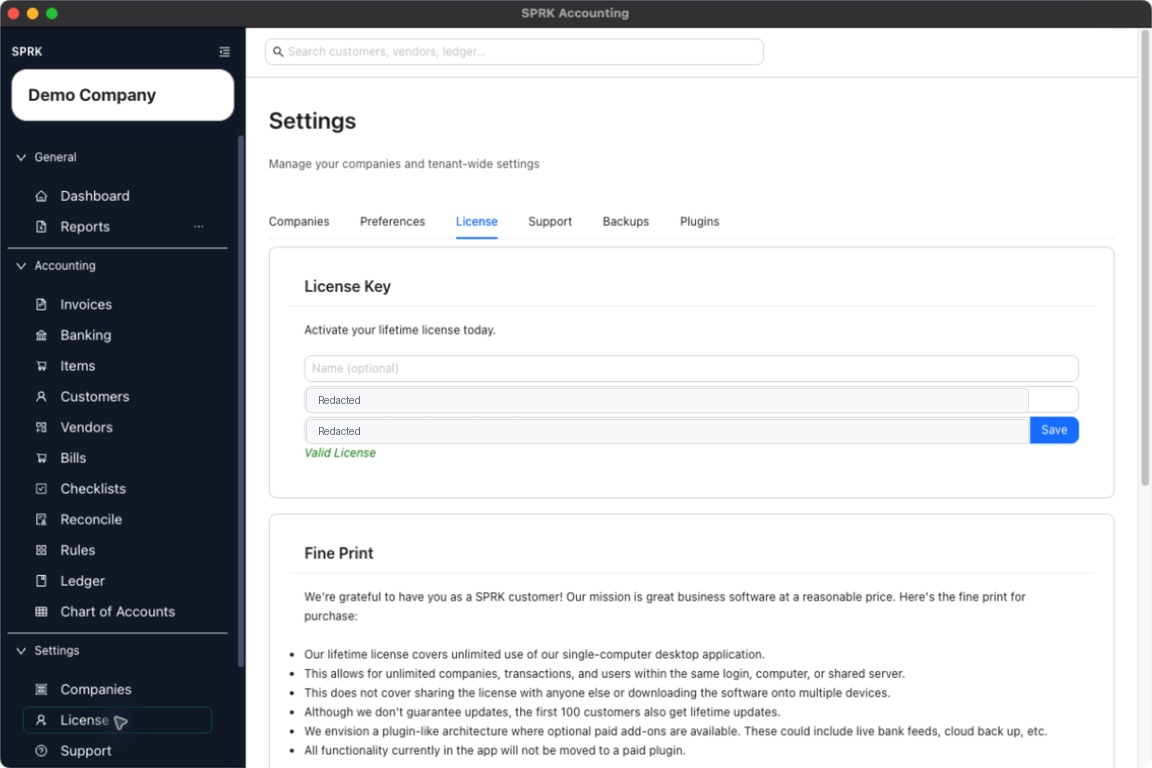
Open the License area to review the saved contact details, current license key status, usage table, and purchase link that SPRK currently exposes.
When to use this
Use this guide when you want to confirm whether a license is already saved for your workspace and review the licensing details visible in the app.
Before you start
- You are signed in to SPRK.
- At least one company is available so the app can load tenant usage details.
Steps
- Open
Licensefrom theSystemsection in the sidebar. - Review the
License Keycard. - Review the saved
Name,Email, andLicense keyfields if they are present. - Look for the
Valid Licensemessage if a license has already been saved. - If no license has been saved yet, review the
Buy License (Stripe)button. - Review the
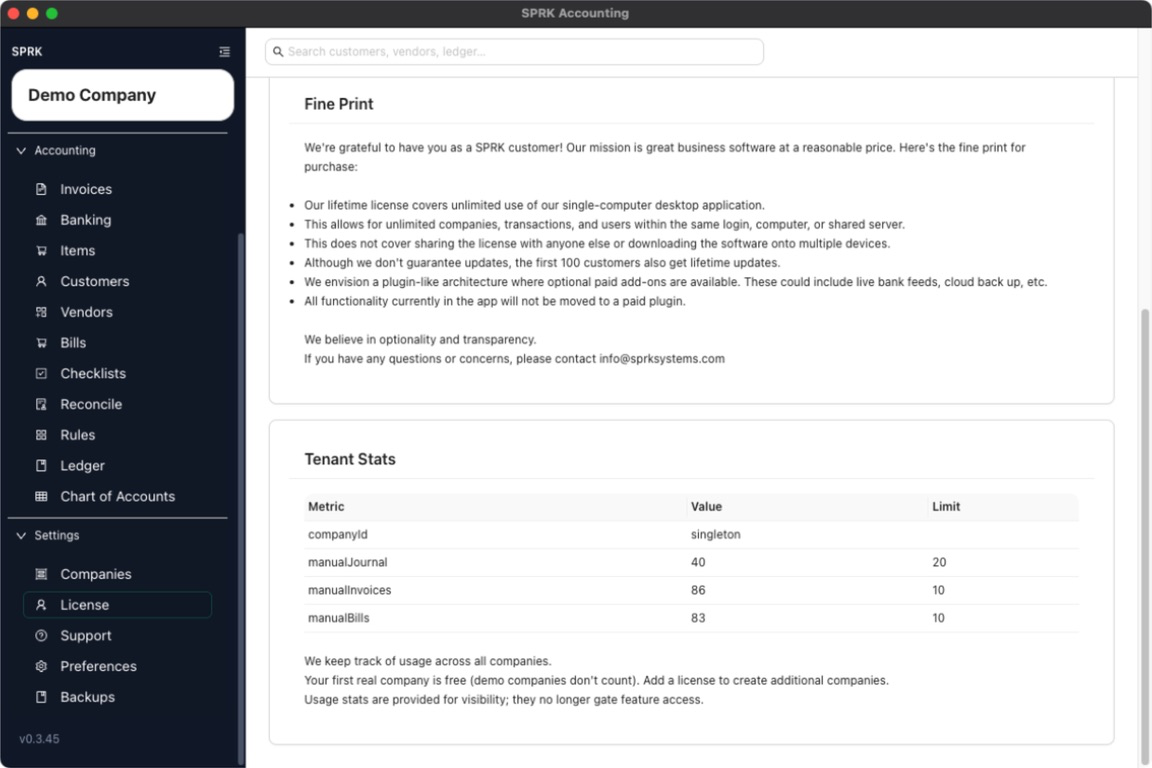
Fine Printcard for the current public license terms shown in the app. - Review the
Tenant Statstable to see the usage metrics, current values, and listed limits across the workspace.
What happens next
You can review the licensing details currently visible in SPRK, including whether a license key is already saved, the public purchase link when it is shown, and the current workspace usage table.
- The
Licensearea shows access and usage information for the workspace.