
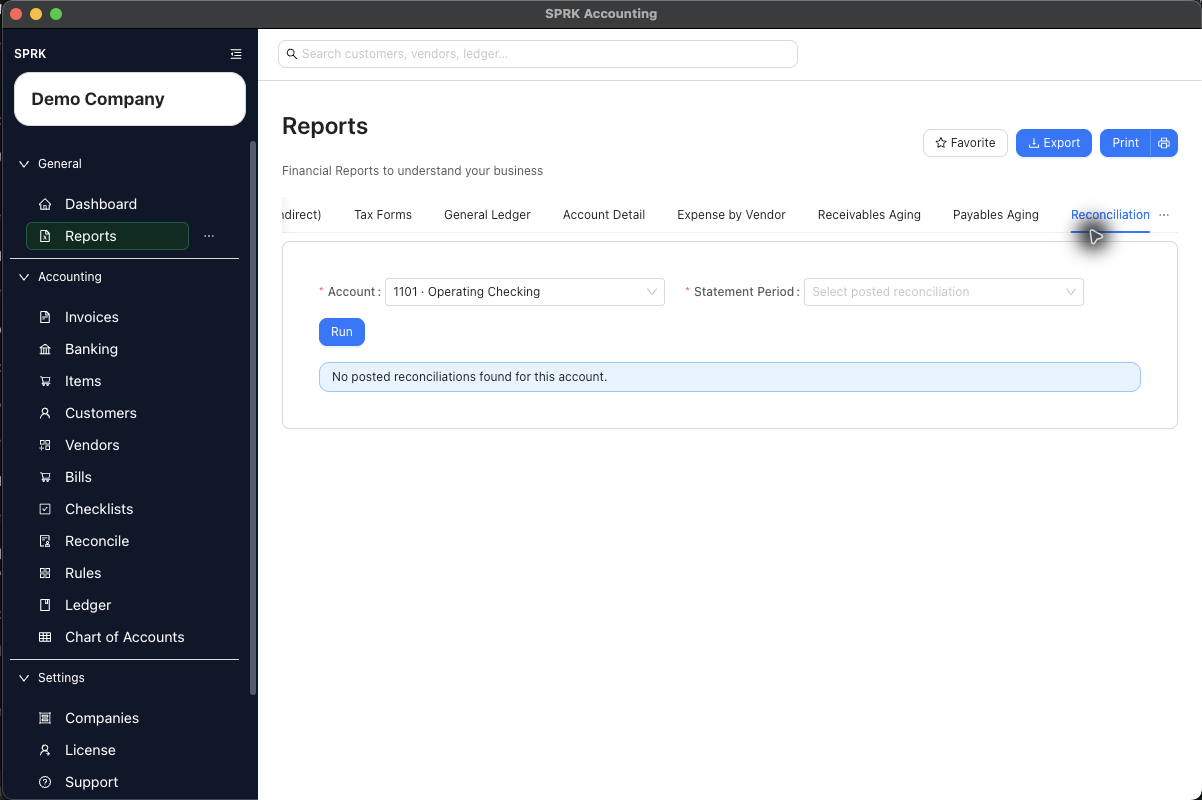
Open the bank reconciliation report from an active reconciliation or posted reconciliation history, then review, print, or export the statement-period results.
When to use this
Use this guide when you need support for a completed bank or credit card reconciliation, or when you want to check whether a posted reconciliation report is available for an account.
Before you start
- The correct active company is selected.
- The bank or credit card account has been selected in
Reconcile. - A posted reconciliation period exists if you need a populated reconciliation report.
Steps
- Open
Reconcile. - Select the bank or credit card account you want to review.
- To open the report path from the active reconciliation page:
- Select
More. - Select
Print Bank Rec. - SPRK opens
Reportson theReconciliationtab with the selected account filled in.
- Select
- If the report asks for
Statement Period, select the posted reconciliation period you want to review. - Select
Run. - To open a report from posted history instead:
- Return to
Reconcile. - Select the same account.
- Select
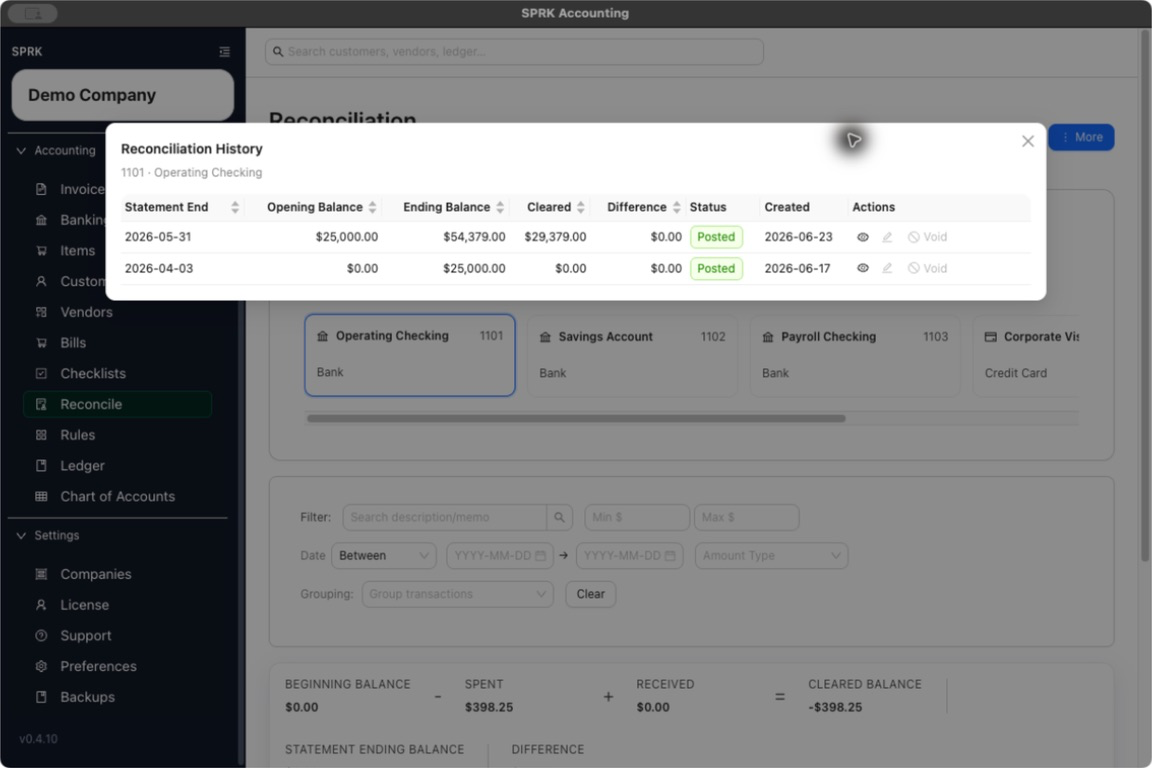
History. - Find the posted reconciliation row.
- Use
View reportfrom the row action when it is available.
- Return to
- Review the report context before printing or sharing it:
- Confirm the account.
- Confirm the statement period.
- Review the summary values and cleared transaction sections.
- Use
Printif you need a PDF or paper copy, orExportif the report exposes an export action for the current output.
What happens next
SPRK opens the reconciliation report area for the selected account and posted statement period.
- The report reflects the posted reconciliation period and selected statement items.
- The report is review output tied to a posted reconciliation session.
- If the selected account has no posted reconciliation periods, SPRK shows that no posted reconciliations were found for the account instead of generating a populated report.
- History rows only expose
View reportwhen there is posted reconciliation history to view. Postedhistory is the normal report-producing state. If a journal correction explicitly voids an affected session, the session stays in history asVoided, is not used for future opening balances, and should not be treated as a normal printable posted report.
If something looks wrong
| What You See | What To Check | What To Do Next |
|---|---|---|
A history row is Voided |
Expecting it to behave like a normal posted report row | Keep it as audit history and use the current posted or later reconciliation period for normal report review |
Practice and examples
Use the practice file and screenshots to review the report action generated from a completed reconciliation.
- Practice file: reconciliation-report-export.csv
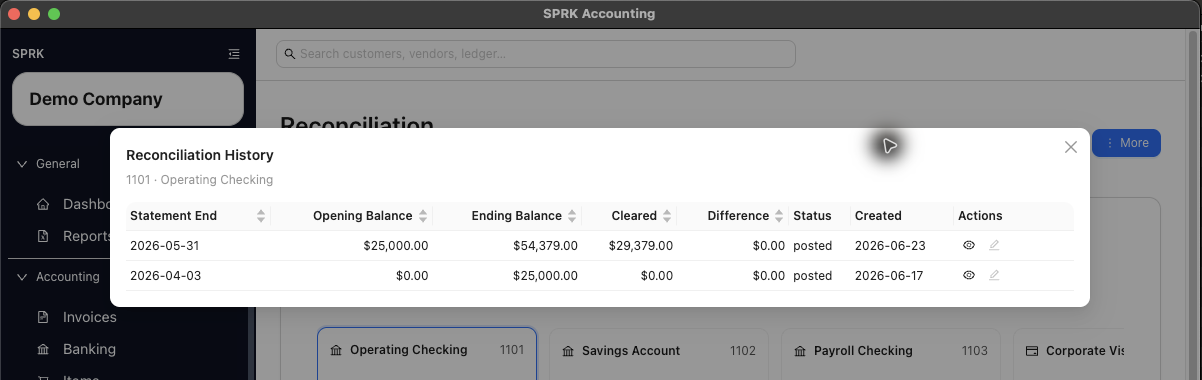
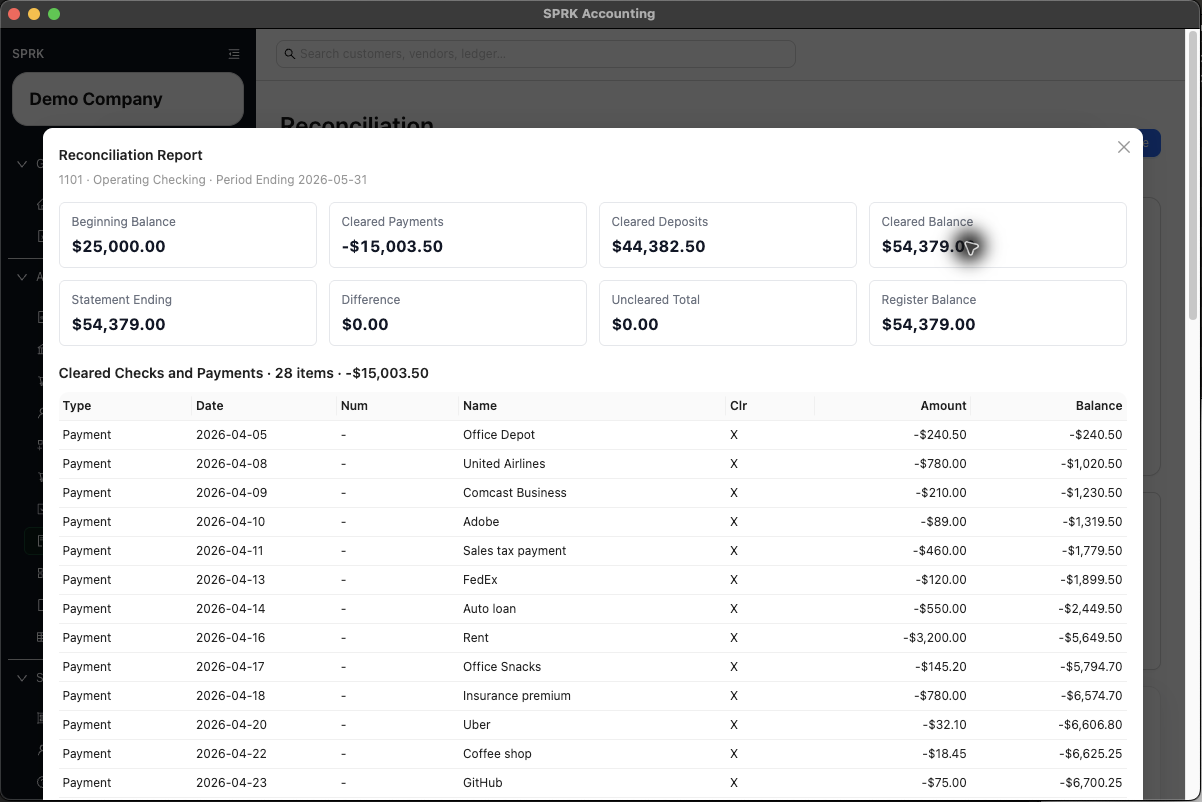
Posted history exposes a report action, and the report includes statement-period detail for later review.