
Use the Import Wizard, also called the Import Company Wizard in some workflows, to create a new SPRK company from data already stored in another SPRK company.
When to use this
Use this guide when you want to clone, copy, or duplicate an existing company into a separate new company. Common uses include building a training copy, starting a similar client from a known setup, testing a setup pattern, or creating a clean company that reuses selected foundation data.
Use Company File export/import instead when the goal is a file transfer or replace-style company transfer.
Before you start
- You can open
Companiesfrom the left sidebar. - The source company already exists in SPRK.
- You know the new company name.
- You know whether you want to copy only setup data or also include transaction-style data such as journal entries, invoices, bills, payments, or trial balance data where the wizard offers those choices.
Steps
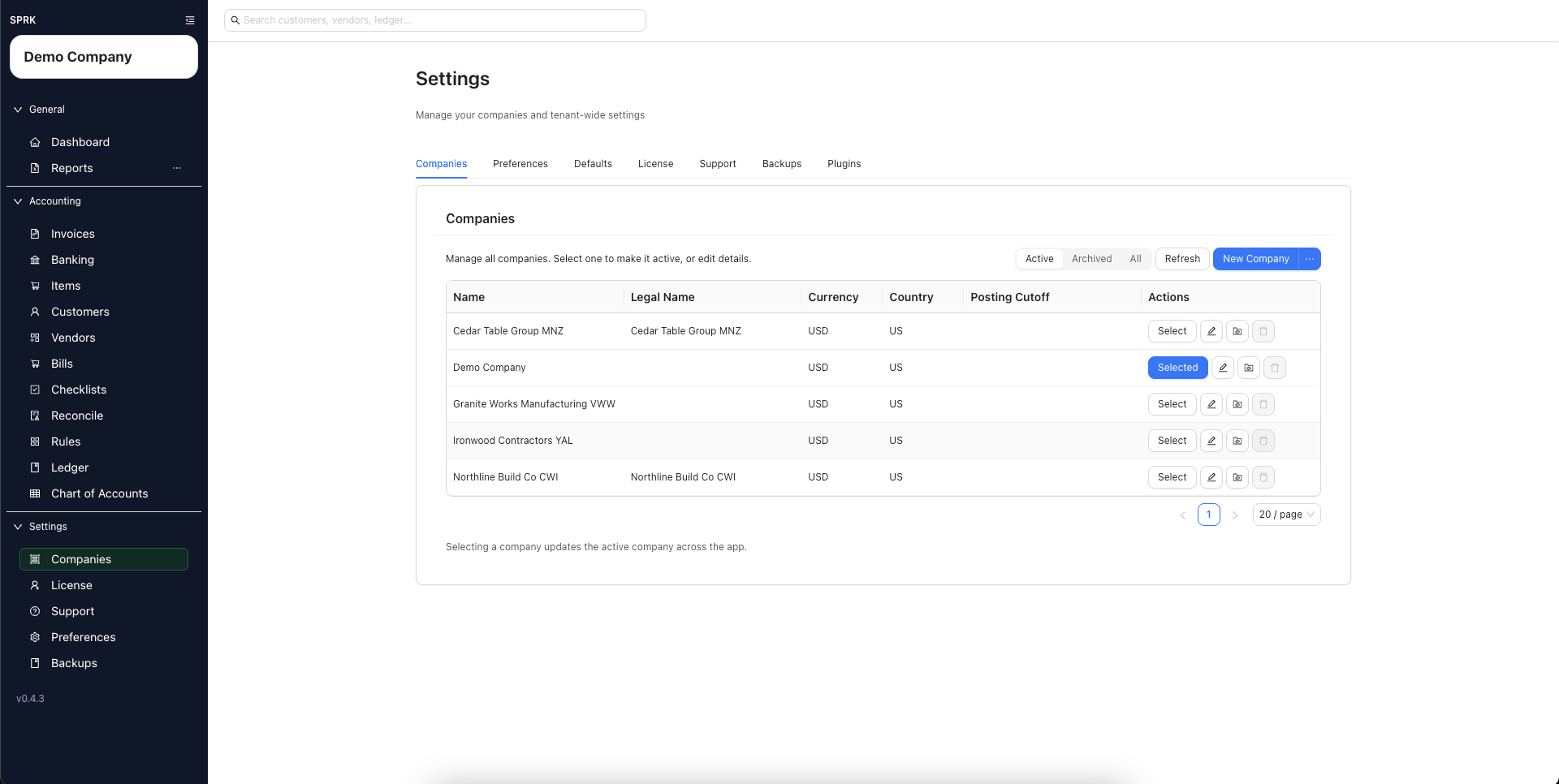
- Open
Companiesfrom the left sidebar. - Open the menu attached to
New Company. - Select
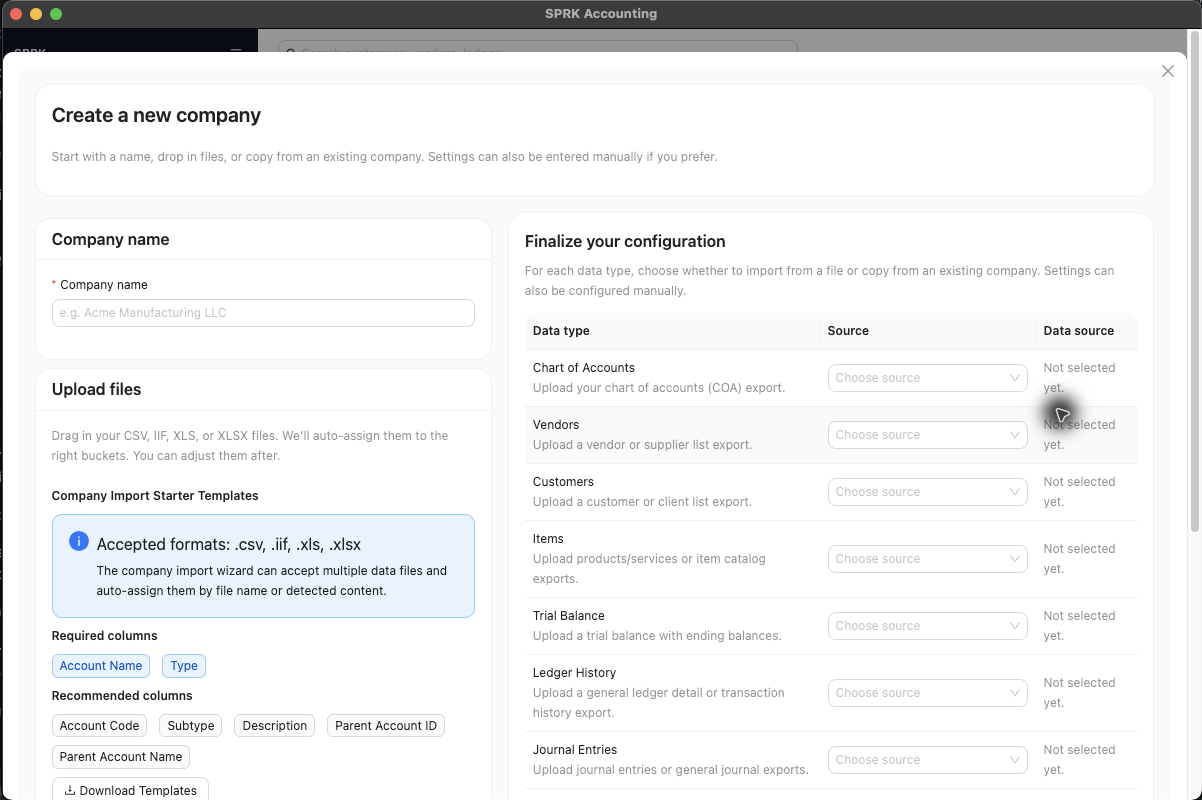
Import Wizard. - Enter the new
Company name. - In the upload step, skip file upload if this is only a copy from an existing company.
- Add files only when the new company should mix uploaded source data with copied company data.
- Choose the
Existing company (optional)that should act as the copy source. - In
Finalize your configuration, review each data type and chooseexisting companyfor the categories you want copied.- Current categories include chart of accounts, customers, vendors, items, rules, trial balance, ledger history, journal entries, invoices, bills, payments, and settings.
- Choose
Existing companyon theRulesrow when the new company should reuse rules from the selected source company. - Use file upload or manual settings for any category that should not come from the source company.
- Select
Review & Create Company. - On the confirmation step, verify the new company name and the source selected for each data type.
- Create the company.
- Switch to the new company and review setup, balances, open documents, reports, and defaults before using it for live work.
What happens next
SPRK creates a separate new company using the source choices you reviewed in the Import Wizard.
- The source company remains in place.
- The new company is not synced to the source company after creation.
- Copying setup-only categories is different from copying transaction or balance categories. Review the wizard choices carefully before creating the company.
- Copied settings can affect future workflows in the new company, such as account label presentation, invoice defaults, item identification, and edit policies.