
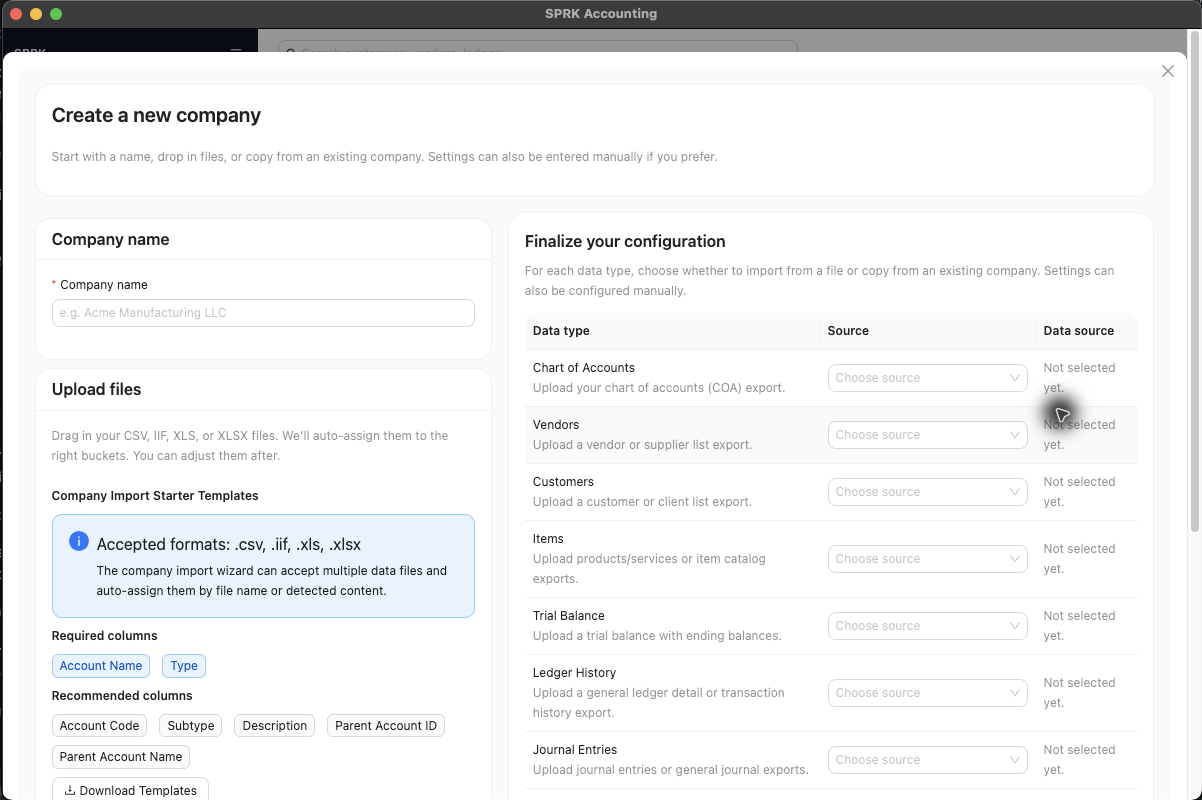
Create a company in SPRK by importing a QuickBooks Online ZIP export from the Companies page.
When to use this
Use this guide when you already exported company data from QuickBooks Online and want SPRK to create or import the company from that ZIP package.
Before you start
- You can open
Companiesfrom the left sidebar. - You have a QuickBooks Online export saved as a
.zipfile. - You have room to create another company in your workspace.
Steps
- Open
Companiesfrom the left sidebar. - Open the menu attached to
New Company. - Select
Import from QBO (ZIP). - In the file picker, choose the QuickBooks Online
.zipexport. - Wait for SPRK to finish the import and refresh the companies list.
- Confirm that the imported company appears in the
Companiestable. - If needed, select the new company so it becomes the active company across the app.
- Review imported records before moving into daily work, especially chart of accounts, customers, and vendors.
What happens next
SPRK imports the QuickBooks Online ZIP and adds the imported company to the companies list.