
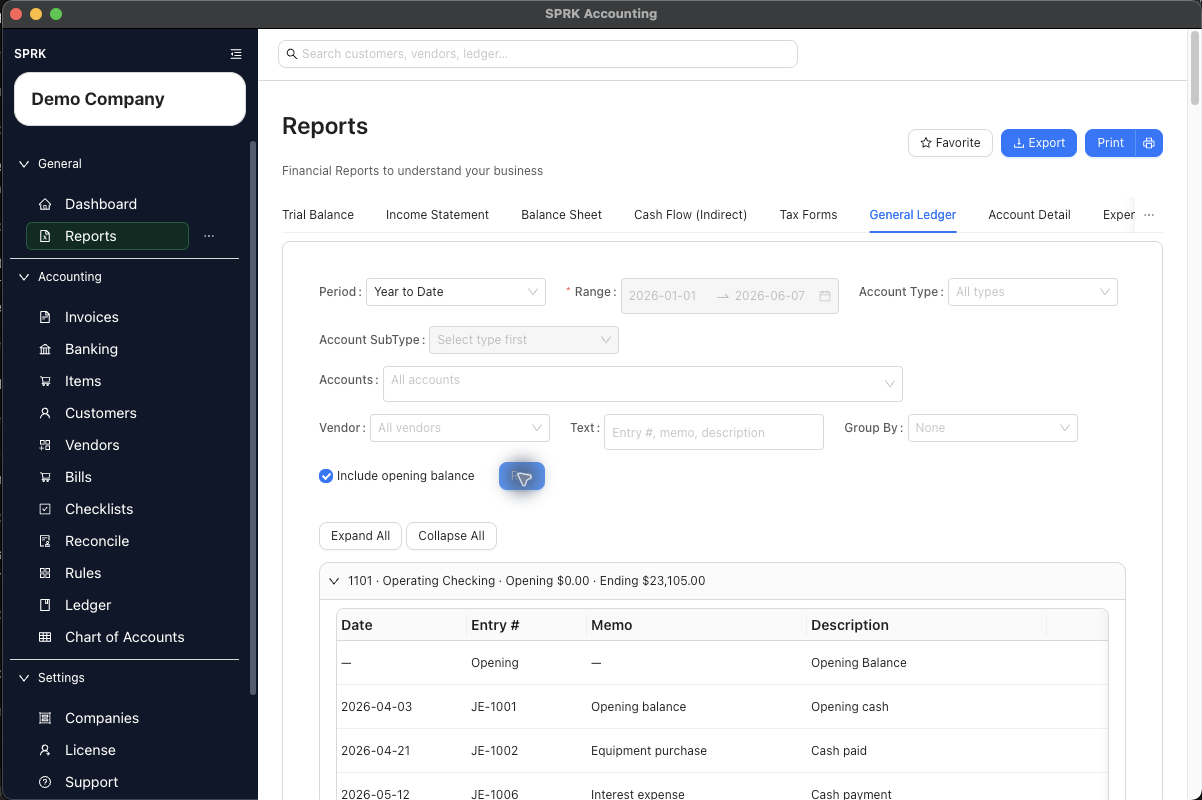
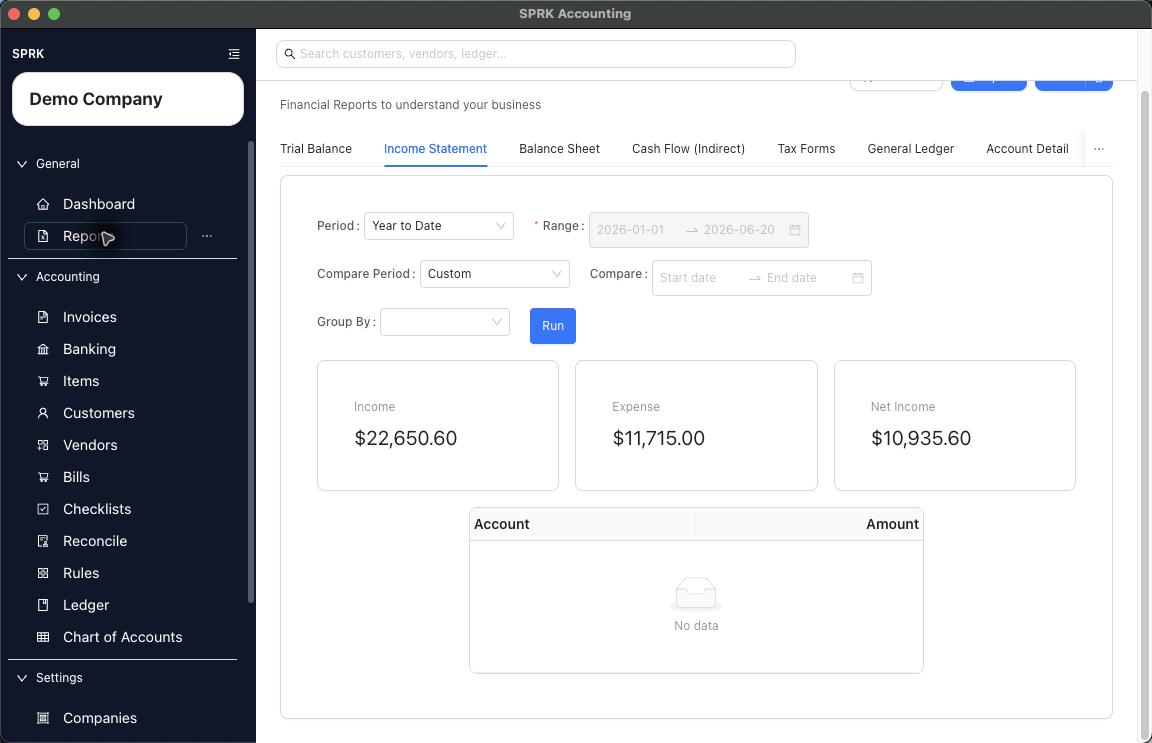
Run financial reports in SPRK as a practical review sequence: scan account balances, review statements, drill into unusual activity, and decide which source workflow should hold any correction.
When to use this
Use this guide when you want to review company results by period, prepare month-end reporting, investigate unusual balances, or check whether AR, AP, banking, and ledger activity agree.
Before you start
- You are signed in to SPRK with the correct active company selected.
- The transactions and journal entries you expect to review are already posted.
- You know the time period or date you want to evaluate.
Steps
- Open
Reports. - Start with the report that matches your review stage:
Trial Balancefor a first scan of account balances.Balance Sheetfor assets, liabilities, and equity as of the review date.Income Statementfor income, expenses, and net income for the period.General LedgerorAccount Detailwhen a balance needs supporting detail.
- Choose any additional report that matches your review goal:
Income Statementfor period-based income and expense review.Balance Sheetfor balances as of a date.Trial Balancefor account balances as of a date.Cash Flow (Indirect)for period-based cash-movement review.Reconciliationfor posted bank or credit card reconciliation report output.General Ledgerfor filtered transaction detail by type, subtype, account, vendor, or text.Account Detailfor transaction detail on one selected account.Expense by Vendorwhen you need vendor spending detail, including the visible1099filter when you are reviewing tagged vendors.
- Set the period or date controls for the selected report. You can use the calendar controls or type dates directly when the field is editable; typed dates should follow your saved
Preferencesdate order.- Supported report selectors are searchable and sorted so longer account or vendor lists are easier to narrow.
- If you are on
Income Statement, add a compare period when you want side-by-side period review. - If you are on
Income Statement, useGroup Bywhen you want the report split by month, quarter, or year. - Select
Run. - Review the summary totals and report rows shown on the page.
- In
General Ledger, useGroup Bywhen you want account-type, subtype, or nested type-and-subtype sections before expanding account detail. - Statement and trial-balance rows follow account code when codes are present and fall back to account name when codes are blank.
- In
- If something looks unusual, use drilldown where available to inspect the supporting entries instead of guessing from the summary alone.
- Supported statement cards, subtotals, totals, and rows can drill into grouped supporting detail, not only single-account leaf rows.
- Grouped drilldowns can represent account scopes such as
Income,Expense,Net Income,Assets,Liabilities,Equity, orNet change in cash.
What happens next
You can review current report totals and detailed lines directly in SPRK for the selected company and period.
- Report totals reflect posted activity already stored in SPRK.
- Compare-period, grouping, and account-order choices change how the results are displayed.
- A reconciliation report reads the posted period for the selected account.
- The
1099filter inExpense by Vendornarrows the review to vendors marked for 1099 reporting; it is not a tax-filing workflow. - Plugin-backed report output appears only when the installed plugin is enabled, its report is compatible, and SPRK accepts the result.
Practice and examples
Use the practice file and screenshots to review payables aging and tax-form mapping without implying tax filing or compliance submission.
- Practice file: aging-expense-tax-mapping-review.csv
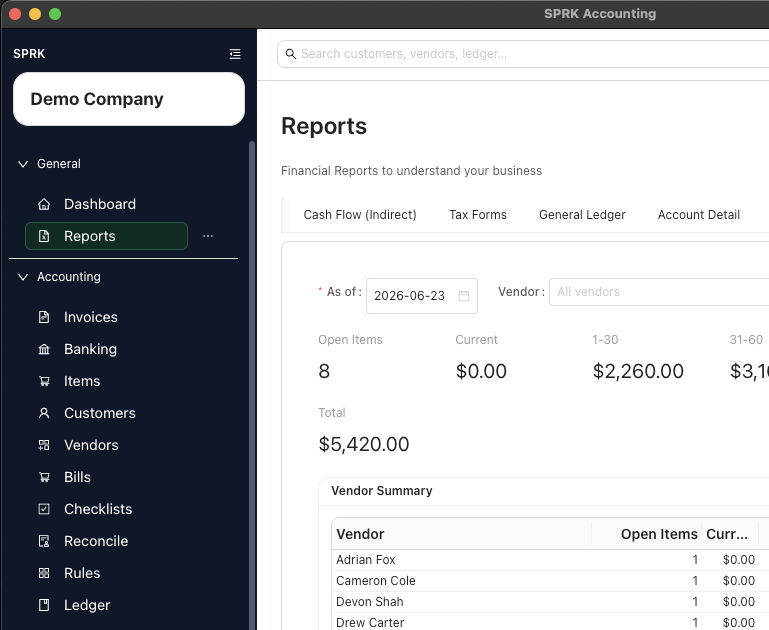
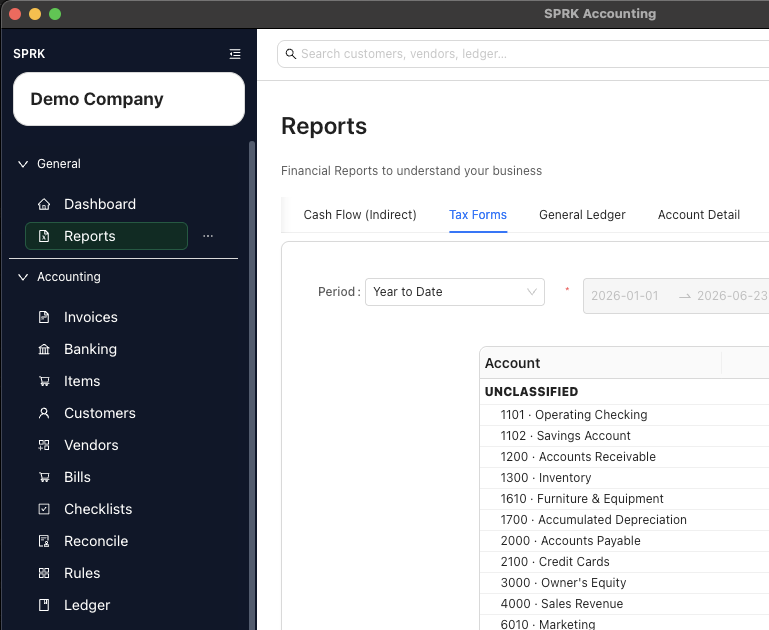
Aging and tax-form views are review tools; SPRK does not file or submit tax forms from these reports.