
Print customer-facing invoice copies and review invoice template settings before sending output to a customer.
When to use this
- You need to print or save customer-facing invoice output.
- You need to review the company-wide invoice print layout.
- You need to confirm whether SKU, sales tax, quantities, prices, dates, or totals should appear.
Before you start
- Confirm the active company.
- Confirm the invoice number, customer, date, total, and balance.
- Review the invoice before printing if the customer-facing copy will be sent outside your firm.
Steps
- Open
Invoices. - Use the row action
Printwhen you want to print directly from the invoice list without opening edit mode first.- You can also open an invoice for editing and use the drawer header
Actions>Print.
- You can also open an invoice for editing and use the drawer header
- Use
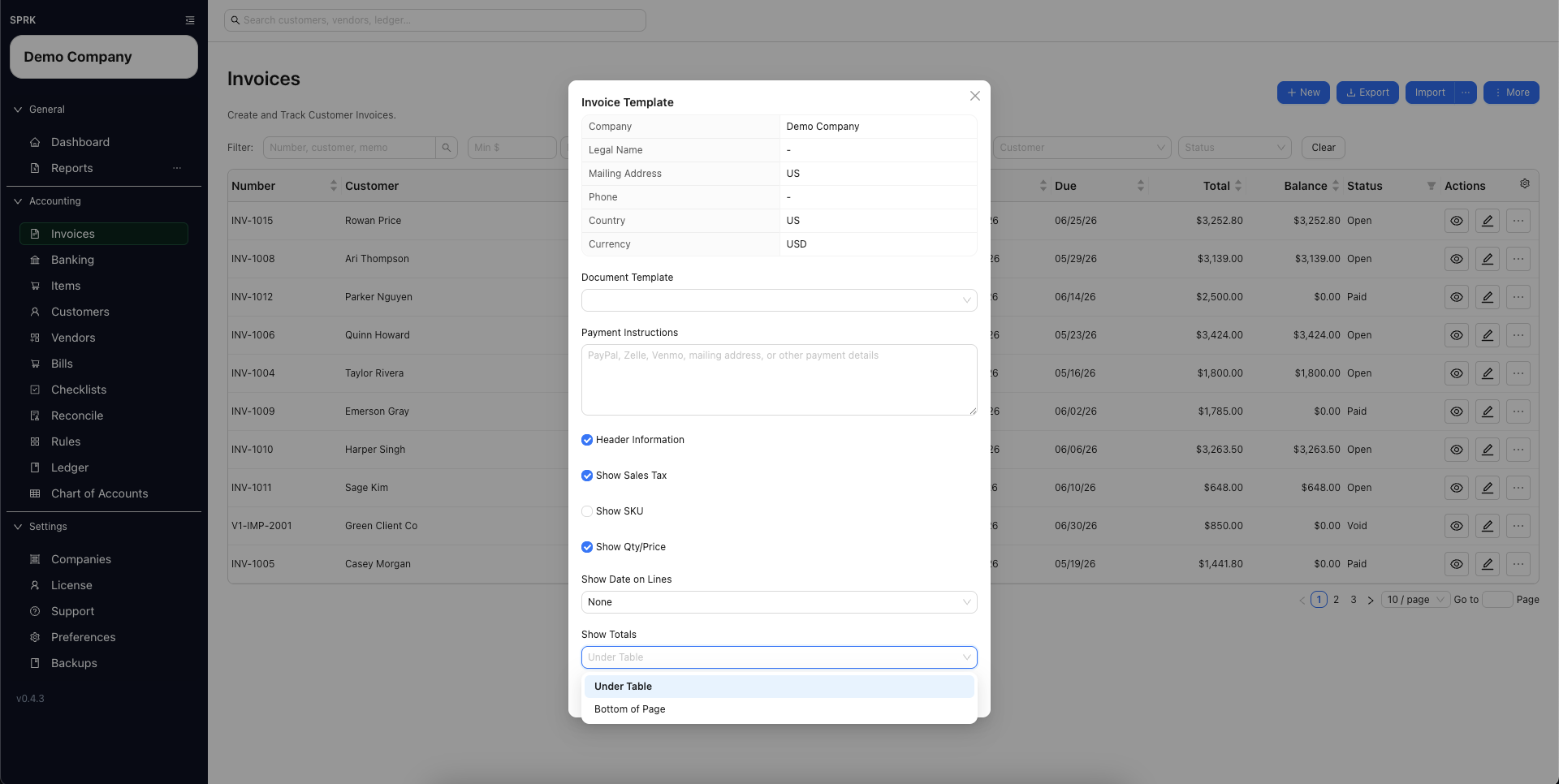
More>Invoice Templatewhen you need to change the company-wide print layout. - Review the visible print settings before saving:
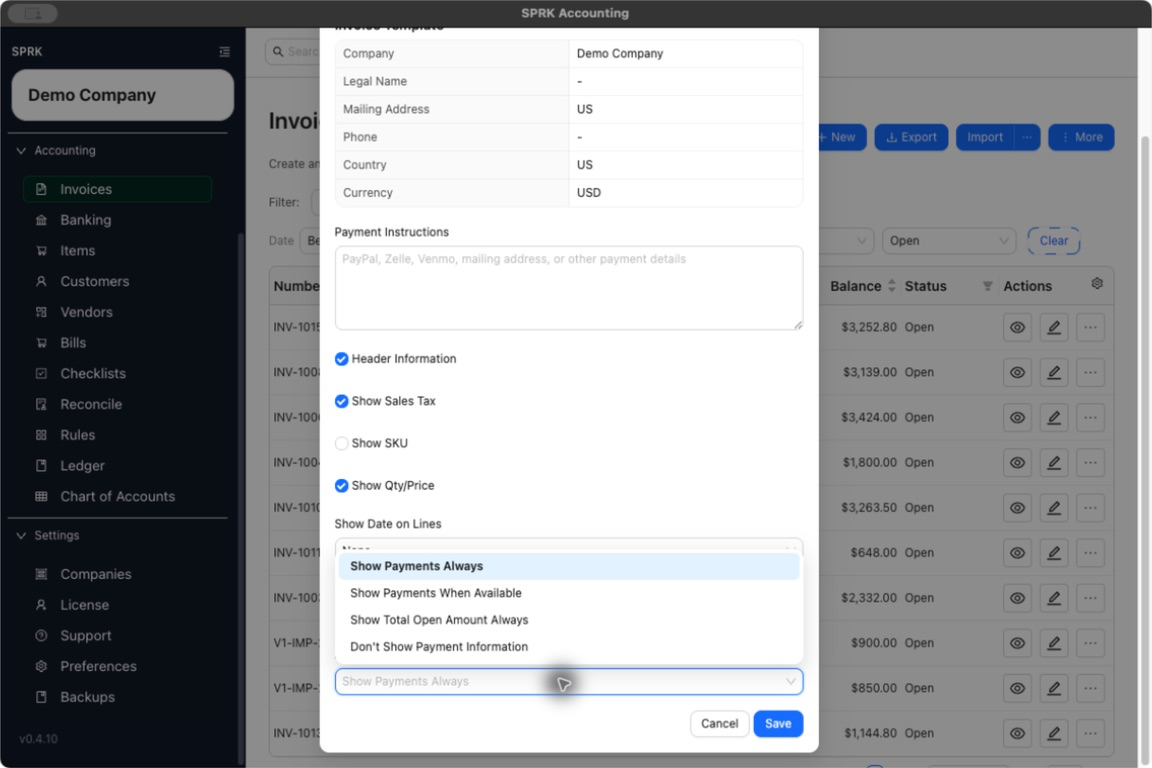
Header InformationShow Sales TaxShow SKUShow Qty/PriceShow Date on LinesShow TotalsPayment Information
- Leave settings on when you want the full customer-facing layout.
- Use the switches and choices for specific presentation needs:
Header Informationcontrols the company header block. Invoice metadata andBill Todetails remain part of the invoice layout.Show Sales Taxcontrols the sales-tax total line.Show SKUcontrols the SKU column.Show Qty/Pricecontrols quantity and unit-price columns together.Show Date on Linescan useNone,Due Date, orInvoice Dateas one shared date column for invoice lines.Show Totalscan place totalsUnder Tableor at theBottom of Page.Payment Informationcontrols printed payment detail:Show Payments Alwaysincludes the payments section.Show Payments When Availableincludes it only when active payments exist.Show Total Open Amount Alwaysshows the total open amount without a payment-history table.Don't Show Payment Informationomits payment details.
- Review the printed preview before sending it to a customer.
What This Changes
Printing and template review change the standard customer invoice output. They do not record a payment, change invoice balance, or edit ledger posting by themselves. The current settings modal does not expose a document-template selector; the visible controls adjust the standard customer invoice layout.
If something looks wrong
| What You See | What To Check | What To Do Next |
|---|---|---|
| A printed invoice is missing SKU or line details | Show SKU, Show Qty/Price, and Show Date on Lines |
Update the template setting before printing again |
| Totals appear in the wrong place | Show Totals |
Choose Under Table or Bottom of Page |
| The company header does not look right | Header Information and company contact details |
Review company and invoice template settings before sending the invoice |
| The printout does not show payment history | Payment Information and whether the invoice has active payments |
Choose an appropriate payment mode, or use payment history inside SPRK for internal review |