
Assign account, split, and party details to pending bank or credit card rows before confirming them.
When to use this
- Imported or manually entered bank activity is waiting in
Pending. - A row needs a GL account/category, split, vendor, or customer before confirmation.
- You are ready to finish one or more reviewed banking rows.
Before you start
- Select the correct bank or credit card account.
- Stay on the
Pendingtab. - Confirm the row date, description, amount, and optional check number.
- Make sure the offset account or split accounts you want to use are available. Nonposting accounts and restricted control accounts may be visible in
Chart of Accountsbut omitted from posting-oriented Banking selectors.
Steps
- Open
Banking. - Select the bank or credit card account you want to review.
- Confirm that
PendingandCategorizedreflect the selected account only. - Filter the list if needed by transaction type, description, amount, date, GL account/category, rule status, or class values when dimensions are enabled.
- Review any likely-duplicate or imported-party context before classifying the row.
- Review suggestions already shown on the row:
- Rule suggestions can fill a GL account/category.
- Vendor defaults can fill the GL account/category when no manual category, split, or rule already controls the row.
- If needed, assign or change the optional party.
- Banking party selectors can group choices under
VendorsandCustomers. - Money-out review usually points to vendors.
- Money-in review can point to customers.
- Customer assignment is not the same thing as invoice matching.
- Banking party selectors can group choices under
- In
GL Account, choose the account that should receive the non-bank side of the entry.- If you are working directly in the review grid, the same choice may appear under
Category.
- If you are working directly in the review grid, the same choice may appear under
- If one account is not enough, select
Splitand build the allocation:- Use
Percentwhen the split should total exactly100%. - Use
Amountwhen split lines should total the full transaction amount. - Save the split only after the total is complete.
- Use
- Confirm the transaction:
- Use the row-level primary action for one transaction.
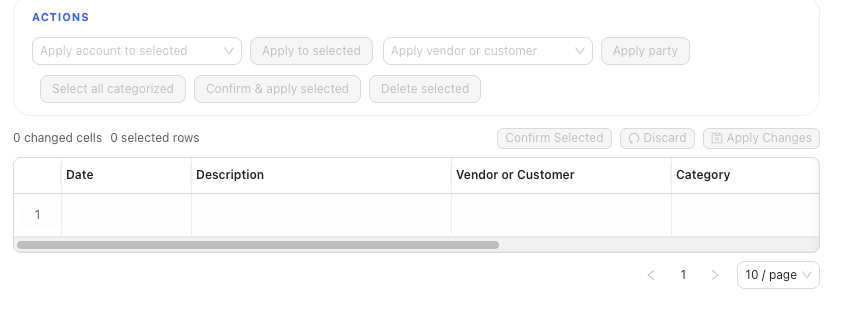
- Or select several rows, use bulk account or party tools if helpful, then choose
Confirm Selected. - In the standard
Pendingtable, use the checkbox column to choose rows for the bulk toolbar. - In Banking Grid Edit, use the row-number column when the build exposes row selection there.
- Review the transaction after confirmation. It leaves
Pendingand appears underCategorized.
What Happens When You Confirm
Changes to the vendor, customer, GL Account, Category, or split remain pending until you confirm the transaction. Confirmation creates or links the accounting entry for that row. The selected bank or credit-card account remains the bank side of the entry.
For money received, SPRK debits the selected bank or credit card account and credits the chosen target account or split accounts. For money spent, SPRK credits the selected bank or credit card account and debits the chosen target account or split accounts.
If something looks wrong
| What You See | What To Check | What To Do Next |
|---|---|---|
| The row cannot be confirmed | Whether it has a GL account/category, saved split, or matched check | Complete the missing classification before confirming |
| A rule suggestion appears | Whether it is only a suggestion | Review the row before confirming |
| A vendor default filled the category | Whether a manual category, split, or rule should control the row instead | Review the saved row state before confirming |
| A split will not save | Whether percent or amount lines total correctly | Complete the split total before saving |
| Selected rows will not confirm | Whether Grid Edit changes are still pending | Apply or discard draft grid changes before the bulk action |
Practice and examples
- Practice reference: bank-review-classify-confirm.csv